Sales Report
This report displays data from all of the sales the user has made.
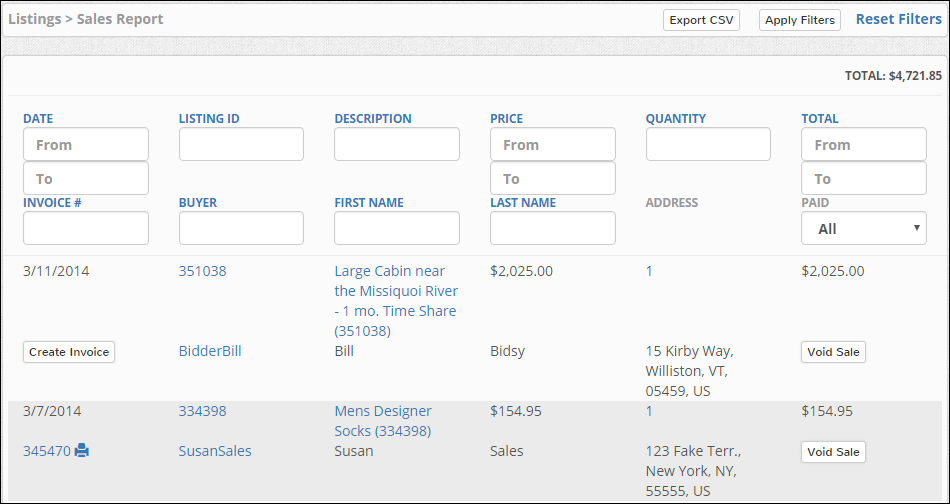
Export CSV - Download the CSV (comma separated value) file containing the sales transaction data. Filters will be applied to the CSV file.
Apply Filters - Click this button to apply any search criteria that has been entered into the field text boxes.
Reset Filters - Click this link to remove any filters and show all of the data available.
 - Click this printer icon to open a printing dialogue for that specific invoice.
Create Invoice - Click this button to create an invoice. This button will only appear on sales that do not already have an invoice.
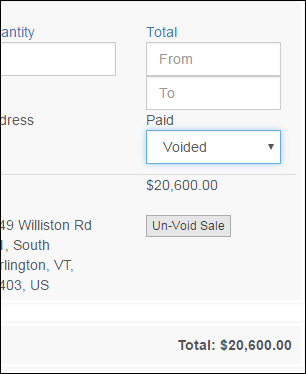
Void Sale - Click this button to void a sale. This will remove the sale from the normal view and will only be viewable when the Voided option is selected from the Paid drop down .
Note: Sales that have been voided can be un-voided by viewing the voided sales and clicking the Un-Void Sale button.
| Name of Field | Type of Information | Description |
| Date | Date (Range) | Date the sale was made |
| Listing ID | Integer Value (Range) | The Listing ID number is unique to the Listing |
| Description | Text | The Title of the Listing |
| Price | Decimal Value (Range) | The subtotal for the item |
| Quantity | Integer Value (Range) | The number of items purchased |
| Total | Decimal Value (Range) | The total amount charged to the Buyer on the Invoice |
| Invoice ID | Integer Value (Range) | The Invoice ID number is unique to the Invoice |
| Buyer | Text | The Buyer's Username |
| First Name | Text | The Buyer's First Name |
| Last Name | Text | The Buyer's Last Name |
| Address | Text | The Buyer's Address |
The Sales Invoices can also be filtered by payment status in the Paid drop down.
- All - Both Paid and Unpaid records
- Paid - Only Paid records
- Unpaid - Only Unpaid records
- Voided - This displays only sales that have been voided from the sales report
