Tutorial: CSV Import
This tutorial provides examples of Importing Lots into AuctionWorx using the Import CSV feature.
The Import CSV feature can allow the site administrator to import thousands of listings into the system at once. In this tutorial we will focus on importing 1 listing at time just as an example. The starting point for this tutorial is a fresh installation of AuctionWorx Events with the default settings.
Note: Microsoft Excel and FileZilla are used in this tutorial. We do not endorse or directly support any third-party products.
Major sections in this tutorial:
- Introduction to Import Lots CSV
- Researching the Important Fields
- Uploading Images using FTP
- Identify the Image URIs
- Importing a Lot
- Importing a Lot with a Custom Lot Field
Introduction to Import Lots CSV
This introduction will take you through the process of importing a lot after covering the basics. First, it is important to become familiar with the dynamic CSV Import Help modal.
- Open the CSV Import Help table to better know what information and format a CSV file can accept. Sign in as an admin and navigate to the Admin Control Panel.
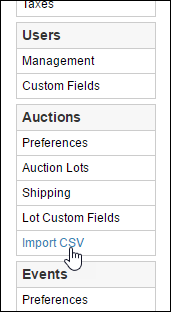
- Using the navigation on the left side of the Admin Control Panel, scroll down and click the link to Auctions > Import CSV.
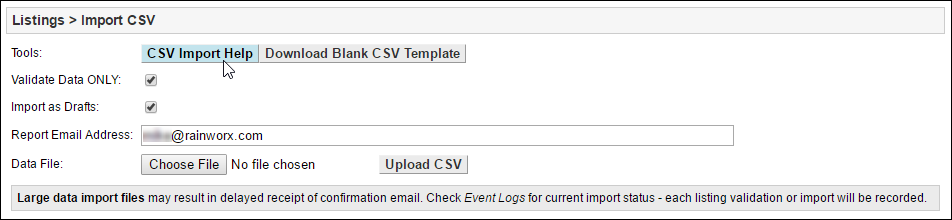
- On the Auctions > Import CSV page, click the CSV Import Help button.
- The Import CSV Column Specifications table is a guide to the syntax that is required for each field that a lot uses. This list is a dynamic reference of importing guidelines based on site configuration settings.
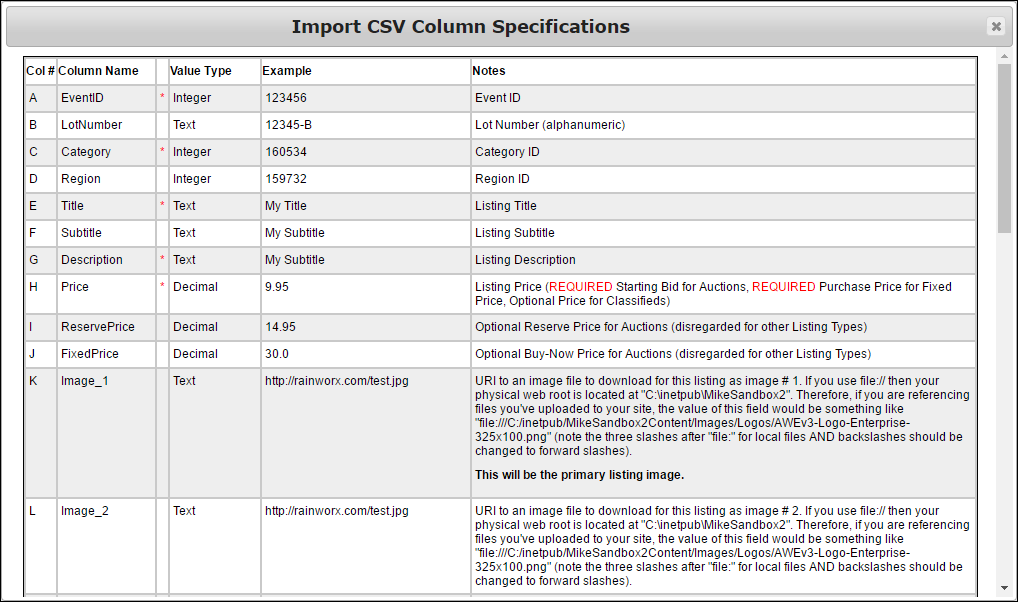
Researching the Important Fields (the minimum required fields for draft lots)
Our goal is to check the settings for each of these fields to ensure that our import will run smoothly. Take note of the following fields that will be used in this example:
- Event ID - This connects the Lot to the event that it will be displayed under.
- Category - This is represented by the Category ID number. You cannot create a category through a CSV Import. The category needs to already exist.
- Title - All lots require a title that contains at least 3 characters. Letters, numbers and some special characters can be used in this field.
- Description - This field must contain at least 3 characters as well but, this field can accept both HTML markup and simple text.
- Price - This field sets the starting price for an auction lot.
Event ID
This Event ID number is generated when an event is created. You will need to start an event to import lots to it.
- Go to the homepage and from the Manage Auction dropdown, select the Create Event option.
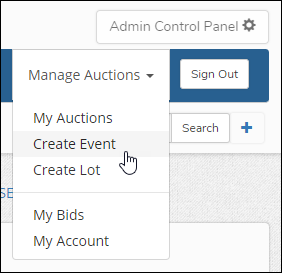
- Give the Event a title, a start time and an end time. Click the Create Event button.
- After the event has been created, navigate to the Event Details page. The number in the URL is the Event ID.

Category
The categories are assigned a 6 digit number when they are created. We will need the Category ID number for the category we want the listing to be displayed under.
- Navigate to the browse page.
- Click on Category B in the left navigation.
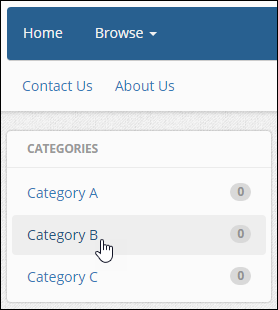
- In the browser's address bar, the category number will be displayed with a "C" before it. Copy that number down for reference.
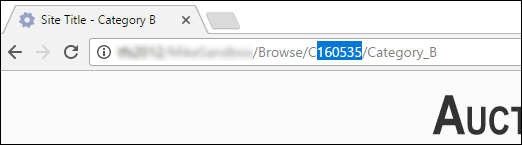
Note: The Category ID number may be different from what is displayed here. They are generally unique to the instance of AuctionWorx.
Title
For the Title we will use "Test Lot". The Title is required and needs to be at least 3 characters and less than 80 characters.
Description
The description can be either plain text or HTML markup. In this example we will use the following HTML:
"<h1>Description:</h1><ul><li>one</li><li>two</li><li>etc...</li></ul>"
Price
This is the starting price for an Auction listing. Enter "100.00".
Uploading Images using FTP
The Image field is not required but obviously images are important to any Lot. The images need to be online so the system can access them with a URI. This URI can either point to a location on the internet where the image is hosted or it can point to a location on the server that is hosting the site. Using an FTP client like FileZilla will allow you to upload the images that will be referenced in the CSV file. If the images you want to use are already accessible with a URL (e.g. stored in Dropbox) you can skip this section.
Install FileZilla
FileZilla is the FTP software that we are going to reference in this tutorial because it is a good free option.
FileZilla download page: https://filezilla-project.org/download.php
Note: Follow the steps in the wizard that are appropriate for your computer and operating system.
Connect to your Server and Upload the Images
The images we will be uploading will only be used during the CSV Import process. This folder will need to be placed in the Content folder on the server. The import process will create copies of the images to be used throughout the site. After the Lots have been imported, the images should be deleted to conserve space on the server. This is why the folder being moved is named CSVImportTemp, so it can be easily identified when the import is finished to delete or move off the server.
- Open FileZilla.
- Click on the Site Manager button in the top left of the window, then click New Site.
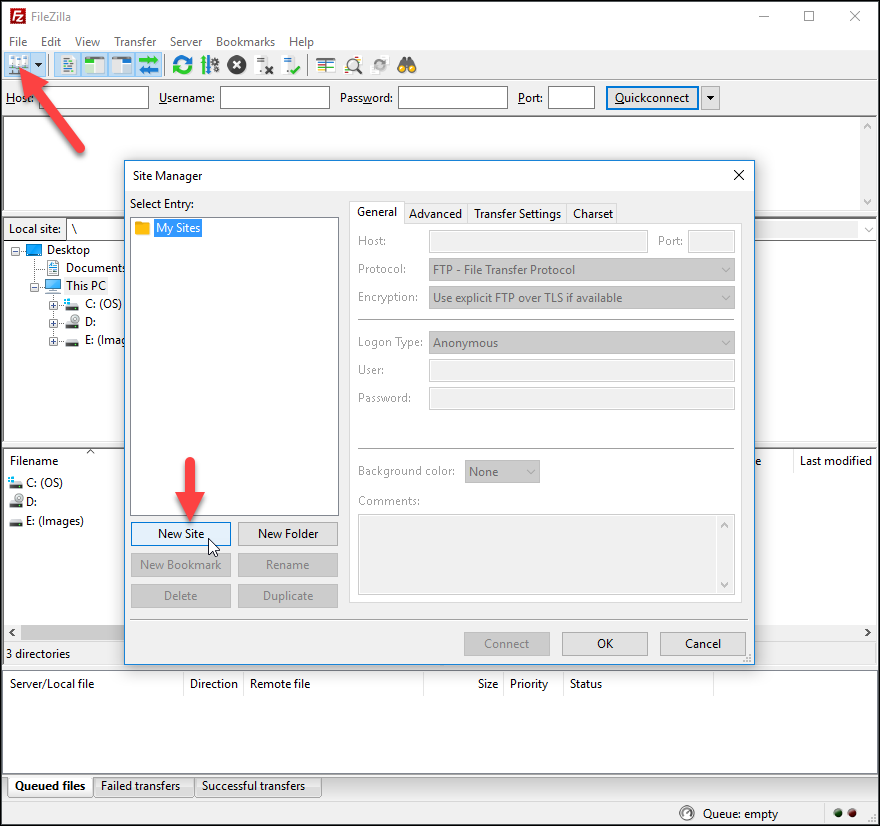
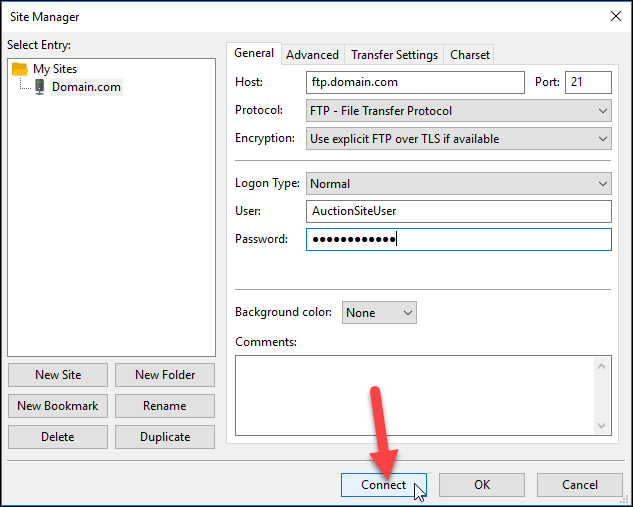
- Enter the FTP Access information you received from RainWorx when your hosting was setup, otherwise get your FTP access information from your web hosting provider. Enter the following information on the General tab.
- Host - ftp.domain.com
- Port - 21
- Protocol - FTP (File Transfer Protocol)
- Encryption - "Use explicit FTP over TLS if available"
- Logon Type - Normal
- User - [provided username]
- Password - [provided password]
- After entering the information into the Site Manager, click the Connect button at the bottom of the window.
If everything was entered correctly you will see a Status message saying "Directory listing of "/" successful" - The window will show two file explorers on the left and right. The left side is your local computer's file system and the right side is the server's file system. Navigate the left side to show the CSVImportTemp folder and navigate the right side to show the Content folder.
- Drag and drop the CSVImportTemp folder from the left side onto the Content folder on the right side.
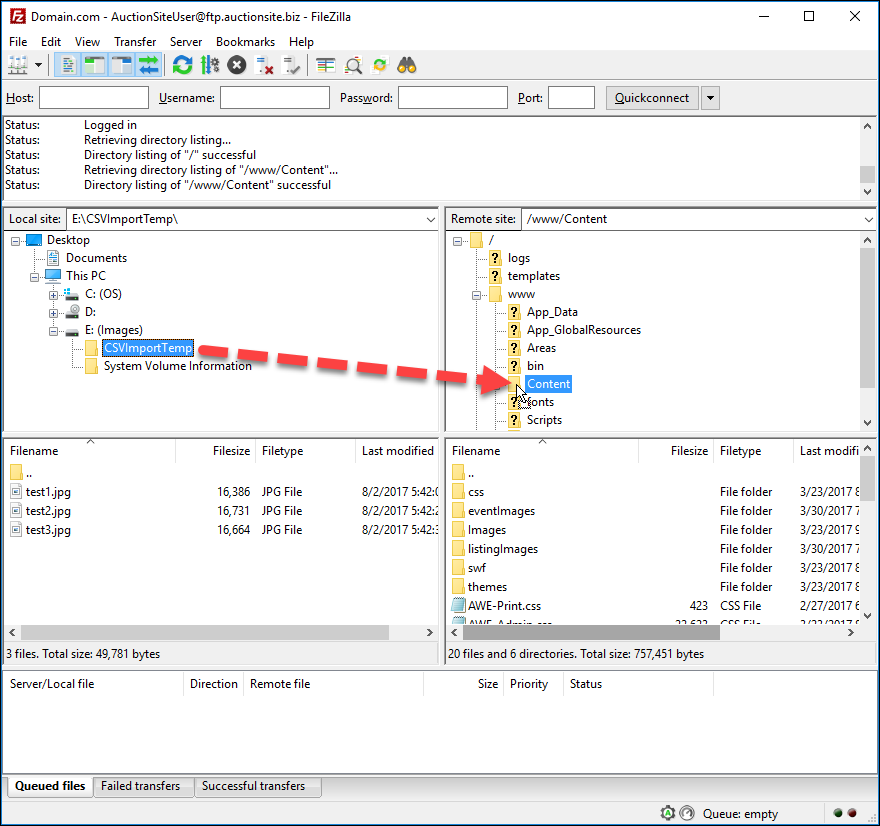
- Congratulations! You have uploaded the images to the server and can now view them in a browser by going to:
[your domain name]/content/CSVImportTemp/[filename]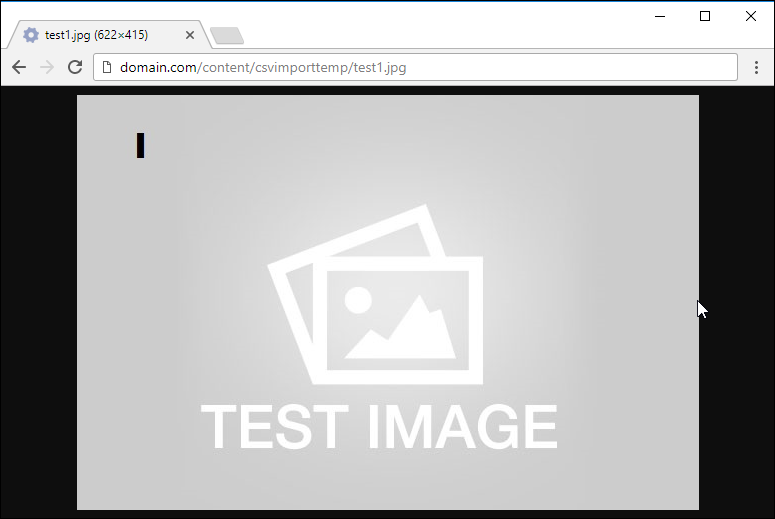
Identify the Image URIs
The most efficient way to reference these images is by pointing to the file location and not the web address. You could just reference the web address described above but, with large batches of Lots it makes more sense to point to them directly.
- Logged in as an admin, navigate to the Admin Control Panel > Auctions > Import Lots CSV page and click the CSV Import Help button.
- In the notes for the field named Image_1 you will see a reference to the file path your server uses. This is automatically generated using the settings on your site to describe what the URI should look like.
Note: This will be different for each site based on how the server is setup so, do not rely on the example given below. Go by what it says in the CSV Import Help notes.
Example: file:///E:/webpub/domain.com/webdata/www/Content/CSVImportTemp/test1.jpg
The above example is what the value entered into the Image_1 field and subsequent image fields should look like. Images are not required and the rest of the tutorial will assume they are not being used or will be added later by editing the Lots individually.
Importing a Lot
At this point we jump right in; download the template, enter the values, upload the file to validate the data and finally, upload the file to import the data.
Download the Template
- Navigate to Admin Control Panel > Lot > Import CSV.
- Click the Download Blank CSV Template button.
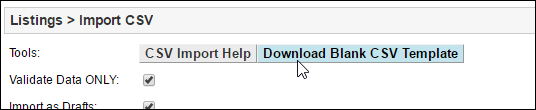
- Save the template file on your local hard drive.
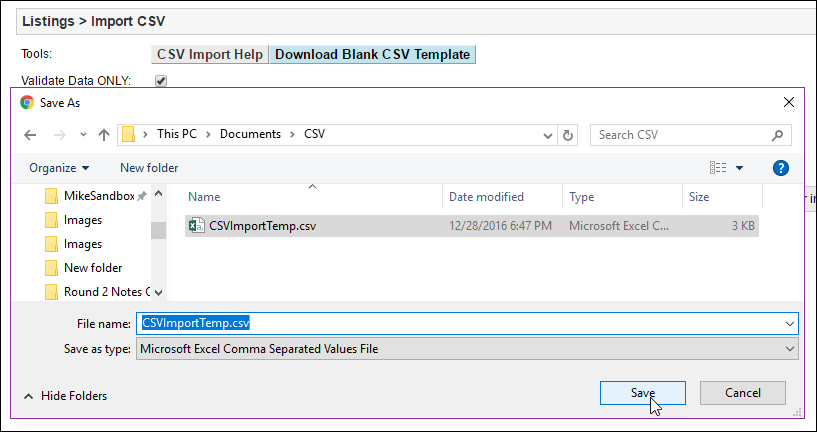
- Open the CSV File in Excel. (or another similar application)
Enter the Values
- Enter the values into the appropriate columns on the 2nd row.
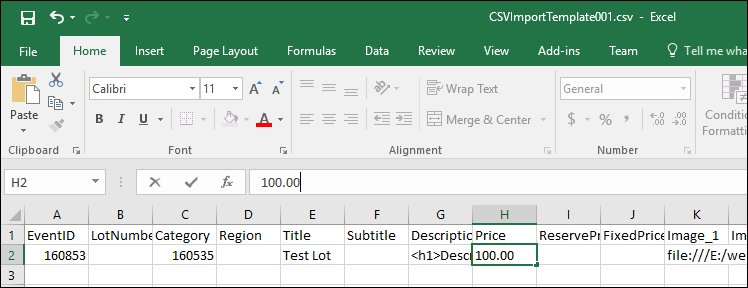
- After entering the required fields click Save. Be sure to keep the file in CSV format.
Upload the File to Validate the Data
- On the site, navigate to the Admin Control Panel > Listings > Import CSV page.
- Make sure that the Validate Data Only setting is checked and click the Choose File button.
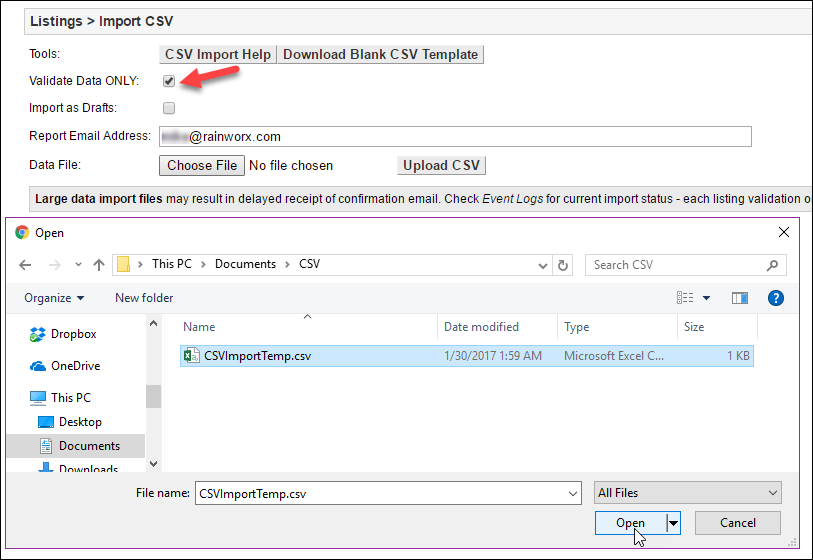
- Check that the Report Email Address setting shows an email address you have access to and click the Upload CSV button.
- Check your email for the report on the validation of this listing. It should look something like this:
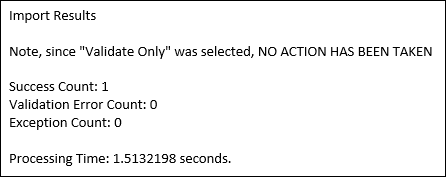
Upload the File to Import the Data
- Navigate to the Admin Control Panel > Listings > Import CSV page.
- Uncheck the Validate Data Only setting and click the Choose File button.
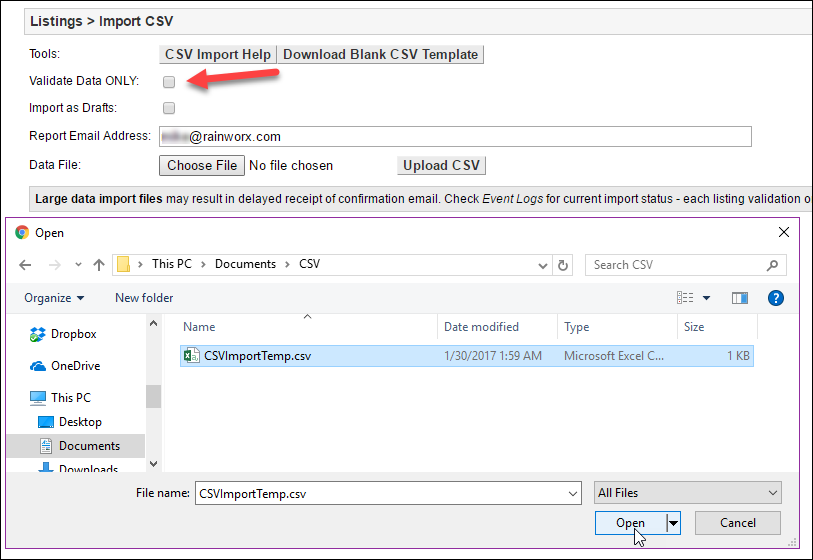
- Check that the Report Email Address setting shows an email address you have access to and click the Upload CSV button.
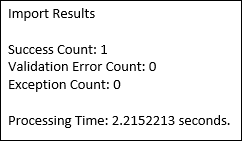
- The resulting email should look like this:
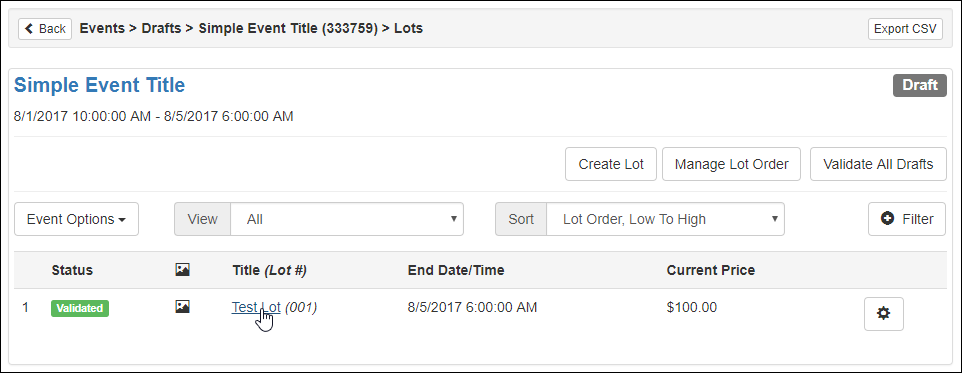
- Now that the Lot has been imported, you can view it by opening the Manage Lots page. Go to the My Account > Events > Drafts page and click the Manage Lots button on the right side of the Event we've just created. From this page you can click the Title of the Lot to view it.
Importing a Lot with a Custom Lot Field
In this example we will make an option list type custom listing field, download a new template and create a classified listing with data in the custom field.
Make a Custom Lot Field
- Navigate to Admin Control Panel > Auctions > Lot Custom Fields.
- Click on the Create Lot Field button.
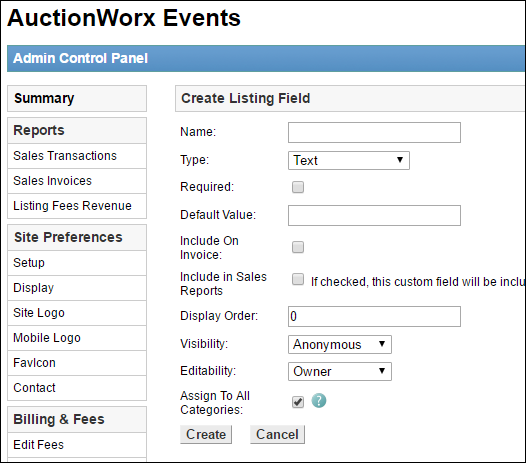
- Enter the values below and click Create.
- Name - Exterior Color
- Type - Option List
- Required - Not Checked
- Default Value - [Leave Blank]
- Include on Invoice - Not Checked
- Include in Sales Report - Not Checked
- Display Order - 0
- Visibility - Anonymous
- Editability - Owner
- Assign To All Categories - Checked
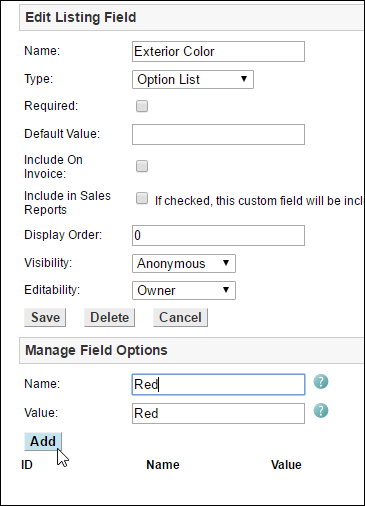
- After clicking Create the form will switch to an Edit Listing Field form with a Manage Field Options form at the bottom. On the Manage Field Options form add Red, Green and Blue as options by entering the color into the Name field and clicking the Add button.
Review the Help Modal and Download a New Template
- Navigate to Admin Control Panel > Listings > Import CSV page and click the CSV Import Help button.
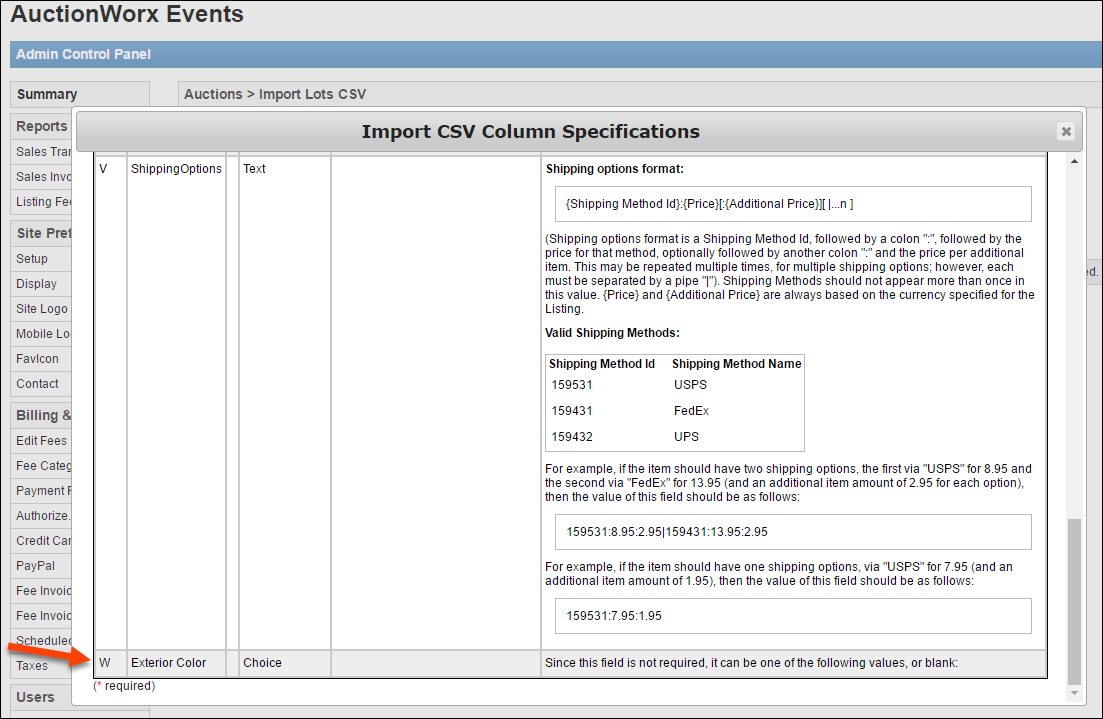
Note: For future reference, the new Custom Lot Field is added to the Help modal with all the options displayed.
- Click Download Blank CSV Template and save it to your local computer.
Enter the Data and Upload the CSV File to Validate and Publish
- Open the latest CSV Template and fill in the columns with the information below:
- Event ID - "160853"
- Category - "160535"
- Title - "New Test Lot with Color Options"
- Description - "<h1>Description:</h1><ul><li>one</li><li>two</li><li>etc...</li></ul>"
- Price - "100.00"
- Image_1 - "http://rainworx.com/test.jpg"
- Exterior Color - "Blue"
- Save the file go back to the Admin Control Panel > Listings > Import CSV.
- Upload the saved template with the Validate Data ONLY checkbox checked.
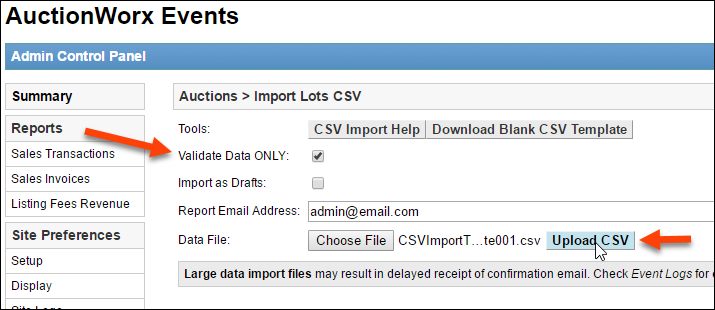
- If the report that is emailed to you says "Success Count: 1" than upload the CSV file again without checking the Validate Data ONLY checkbox, otherwise, check that the values entered are correct or make corrections based on the validation errors you have received.
Note: For more information about the specifics of the Import CSV feature see: Admin Control Panel > Auctions > Import CSV
