Display
Settings in this section control various aesthetic aspects of the website.
Heading Color - Select and set the color that will be applied to the site heading. Use the color picking utility or enter the 6 character HEX code. All HEX codes must be preceded by a HASH '#' symbol.
Note: If you choose White or another light color as the background, you'll want to update the Header text color to a dark color rather than White. To do this you should apply the CSS code that can be found in the Design Docs.
Show Seller Information On Detail Page - Show or Hide the seller information on the
Show Seller Location on Detail Page - When checked, the seller's City, State/Region and Country from their "Primary Address" will be displayed on the
Max Results Per Page - Controls the number of results you want to appear on each page.
Note: The default value is 25
Max Home Page Items - Controls the maxim number of items you want to appear on the home page.
Note: The default value is 16
Max Events Per Page - The maximum number of events that appear on each page.
Note: The default value is 10
Show Category Counts - When checked, a count of how many active
Show Zero Count Categories - When checked, category navigation sections will include all categories in the tier, regardless if they contain any active
Show Seller Name in Search Results - When checked, the Seller's username is displayed below the
Display Listing Type in Search Results - When checked, the listing type will be displayed on the
Thumbnail Type - When Cropped is selected, the image will be made square to fit the image display area. When Scaled to Fit is selected, the image will be scaled down until the width fits the image display area.
| Cropped | Scaled to Fit | ||
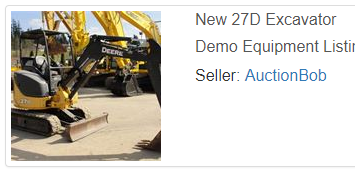
|
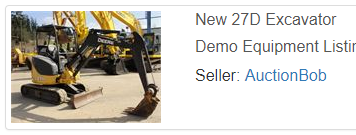
|
Note: Thumbnail Type only affects the thumbnails displayed in lists, not gallery images.
Default Browse Sort - Select which Sort option is selected by default when browsing listings. Ending Soonest meaning ordered by closing next or Newest meaning most recently posted.
Show Categories/Regions on Homepage - Categories and Regions will appear on the homepage to the left of the homepage featured listings.
Show Categories/Regions on Event Homepage - Categories and Regions will appear on the event detail page to the left of the lots.
Hide CMS Banners On Mobile - When enabled, top, side, and bottom banners will be hidden on devices with a viewing area smaller than 768px wide.
Center Logo Position - Default logo position for PC and Tablets is left aligned. Enable this setting to center the logo on the page. For all devices where the viewing area is less than 768px wide (i.e. mobile devices) the logo will be centered automatically.
Time Remaining Style - This setting determines the formatting of the remaining time when shown on the homepage, browse/search pages and listing/lot detail pages.
-
Classic, e.g. "10 Days, 19 Hours remaining"
-
Active, e.g. "10 Days 19:33:10 remaining"
Default Browse Style - This setting determines the default style to display results on the browse/search pages.
- List, one listing per row with more text
- Grid, a gallery format with larger images
Homepage Content - This setting controls what content is displayed on the home page.
- Default,
- Browse, all
- No
Show "Auctions" Header Link - If enabled, an Auctions link will be displayed in the header next to Browse, linking to a list of all Auction Events.
