Tutorial: Creating Custom Lot Fields and Custom Listing Fields
This is a walk-through tutorial on how to create Custom Listing Fields or Custom Lot Fields.
This tutorial will explain the basics of Custom Listing Fields, what Visibility and Editability mean, how to make option list fields, Date fields and other field options using a few examples to explore the various features. To follow along, you need to navigate to Admin Control Panel > Listings > Custom Fields.
Note: To follow this tutorial you can Enable Non-Auction listings from the Admin Control Panel > Auctions > Preferences page so that, instructions mentioning "creating a listing" can more easily be followed. Otherwise, when instructed to create a listing you can substitute in creating a lot instead. The functionality of a Custom Listing Field and a Custom Lot Fields is equivalent.
Topics in this Tutorial
- Creating a Basic Custom Listing Field
- Viewing the Custom Listing Field
- A Look at Visibility and Editability
- Creating an Option List Field
- Viewing the Option List Field
- Creating a Date Field
- Viewing the Date Field
- Viewing the Custom Field on an Invoice
- Text, Decimal, Whole Number and Yes/No Fields
- Connecting Listing Fields to Categories
- Multilingual Support
Creating a Basic Custom Listing Field
By default, there are no pre-configured Custom Listing Fields when the software is installed. The Admin Control Panel > Listings > Custom Fields area will be blank. The goal of this section is just to become familiar with the basic process of creating a Custom Listing Field.
- To create a new field, click the Create Listing Field button.

- Fill in the following values for the custom listing field:
- Name: Test Text Field
- Type: Text
- Required: Off
- Default Value: N/A
- Include On Invoice: Off
- Include in Sales Report: Off
- Display Order: 0
- Visibility: Anonymous
- Editability: Owner
- Assign To All Categories: On
- You will be brought back to the main screen and the new Listing Field will be displayed in a table. Click the "Test Text Field" name to view the edit screen. The point of this step is for getting familiar with the process.
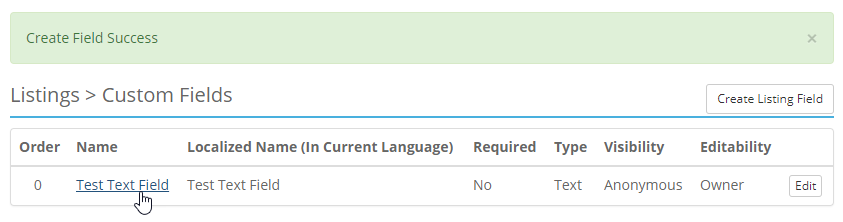
Note: When creating a custom field, the Assign To All Categories option is available but will not be available when going to edit a custom field. Deciding if this new field should apply to a few select items or all or almost all items is a decision that should be made early.
If you wanted to remove this new Custom Listing Field from some categories, you would need to do that in each category. In this example we intend to add the Test Text Field to all categories and that is why we checked that box during the Create Listing Field dialogue.
- Click Cancel to leave the edit page and return to the main page.
Viewing the Custom Listing Field
Now that the test text field has been created, we need to make a listing to view how the field will appear to the users.
- Click the Sell link in the top left of the screen.
-
Select an available category and Auction. Click “Next” button.
- Enter a Title and a Description.
- Below the description you will see a section called Additional Details with a new field called Test Text Field that has a value of N/A. This is how this field will appear to Sellers. Change it to "Test".
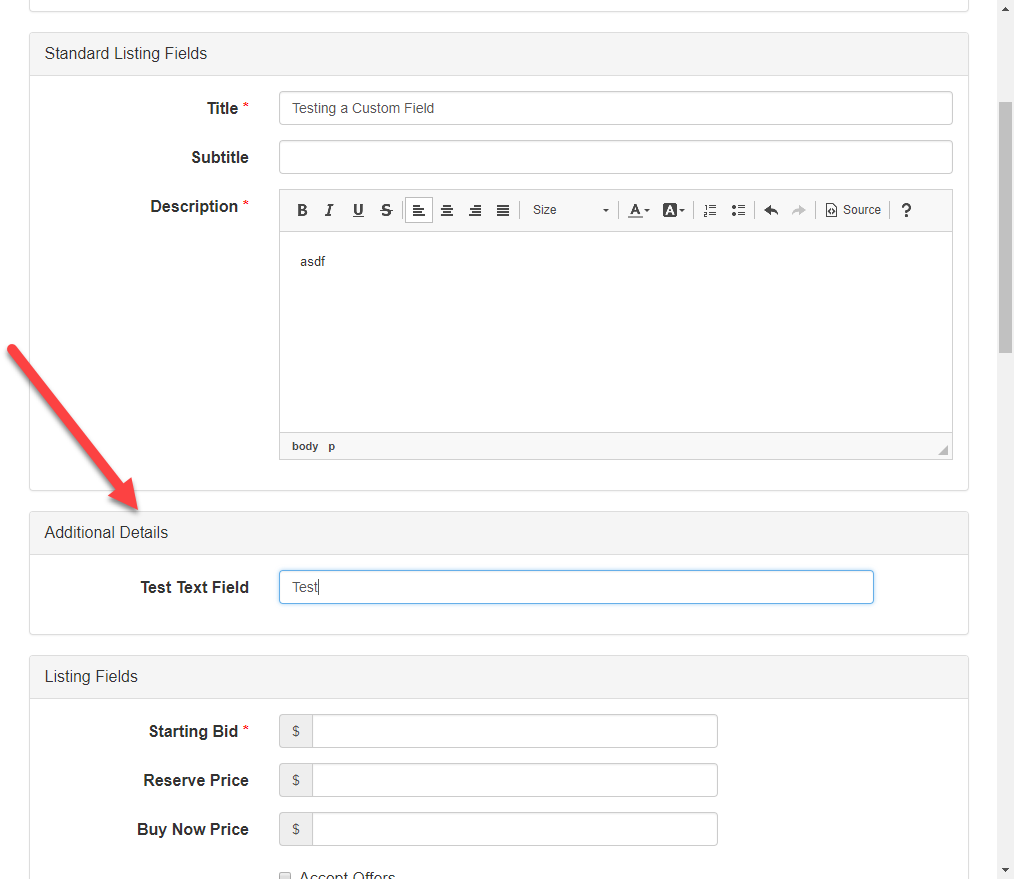
- Enter a Starting Bid of $5.00.
- Select a Duration.
- Click Create Listing.
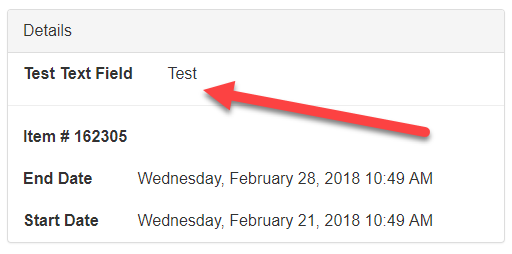
- Click the link to open the newly created listing and scroll down past the description to see how it is displayed on the Listing Details page.
A Look at Visibility and Editability
In most cases the visibility and editability will use the default values that are set when creating a listing. In some cases though, it makes sense to adjust this to achieve the desired outcome.
The Visibility affects the level of permission needed to view the field.
Example: If you wanted to hide a field from users who have not logged in, like details about pickup location, you could change the setting from the default (Anonymous) to Authenticated. That would stop users that are not logged in from viewing the pickup location information.
Here are the levels of permission the system will require before allowing a user to view a custom listing field:
- None - No one, including the system, can view this custom field.
- System - The system is the only user that will be able to view this custom field.
- Admin - The Administrator and the above users are the only users that will be able to view this custom field.
- Owner - The user that the information pertains to and the above users are the only users that will be able to view this custom field.
- Purchaser - The user that submitted a bid or purchased from the listing that this information pertains to and the above users are the only users that will be able to view this custom field.
- Authenticated - Any user that has been authenticated and the above users are the only users that will be able to view this custom field.
- Anonymous - Anyone can view this field.
Editability has a similar list of settings that can change "who" can edit the field. The default (Owner) is sufficient for most cases. The way the setting works, if the Owner is selected, the owner of the listing can edit that field in the listing and all users types above that status can edit it too.
Note: The admin, seller and the system can edit a custom field that has an Editability setting of Owner but, the Buyer, other signed in users and non-signed in users cannot.
Here are the levels of permission the system will require before allowing a user to edit a custom listing field:
- None - No one, including the system, can edit this custom field.
- System - The system is the only user that will be able to edit this custom field.
- Admin - The Administrator and the above users are the only users that will be able to edit this custom field.
- Owner - The user that the information pertains to and the above users are the only users that will be able to edit this custom field.
- Purchaser - The user that submitted a bid or purchased from the listing that this information pertains to and the above users are the only users that will be able to edit this custom field.
- Authenticated - Any user that has been authenticated and the above users are the only users that will be able to edit this custom field.
- Anonymous - Anyone can edit this field.
Creating an Option List Field
Creating an Option List (sometimes called Enumeration) involves a few more steps. In this example you will be creating a Quality Rating field for Sellers to add to their listing. To begin, navigate back to the Listings > Custom Fields page in the Admin Control Panel.
- Click Create Listing Field.
- Fill in the Create Listing Field form as shown in the image below:
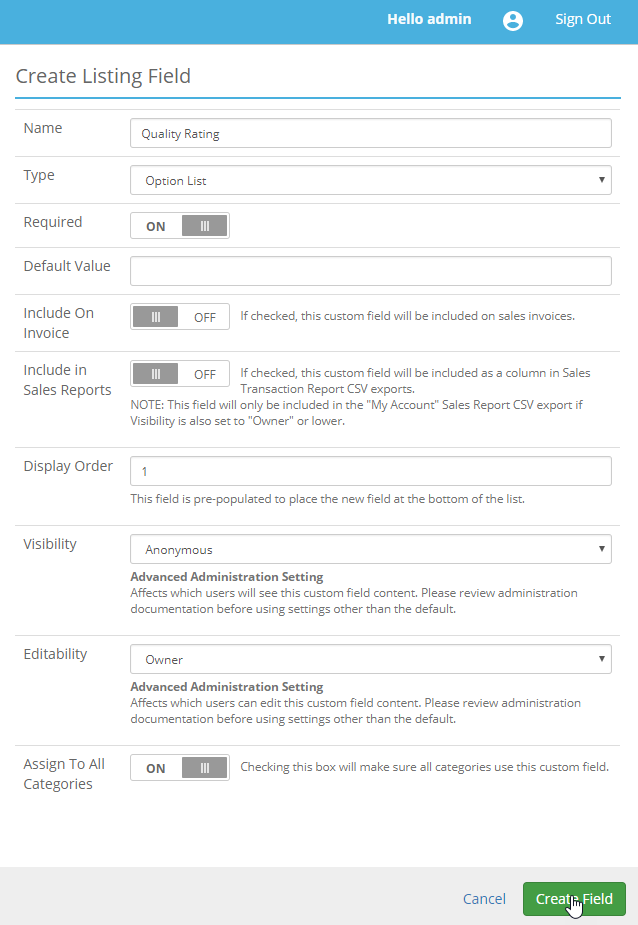
- Clicking Create will automatically bring up the Edit Listing Field with another section called Manage Field Options. Enter the first Name as "Poor Quality" and click Add.
- Add a few more options. "Moderate Quality", "Good Quality" and "High Quality".
- Finally click Save.
Viewing the Option List Field
The goal in this section is to create a listing and explore how the Option List Field is displayed throughout the site.
- Create a listing to view how the field will appear to the users:
- Click the Sell link in the top left of the screen.
- Select an available category and Auction. Click Next button.
- Enter a Title and a Description.
- Below the description you will see a section called Additional Details with a new field called Quality. Change this to "High Quality".
- Enter a Starting Bid of $5.00.
- Select a Duration.
- Click Create Listing.
- Click the link to open the newly created listing and scroll down past the description to view the Additional Details where the Quality Rating is displayed.
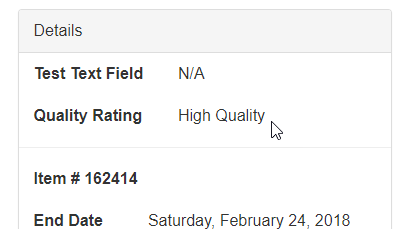
Note: Custom Listing Fields can be used in Advance Search. Option Fields are particularly useful in this context.
- Click the Plus symbol next to the Search bar at the top of the page and open the Advanced Search.
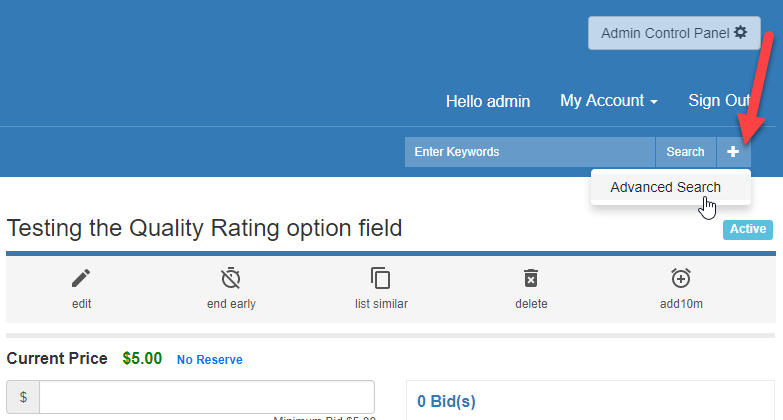
- Scroll down to the bottom and select "High Quality" as the Quality Rating and click Search.
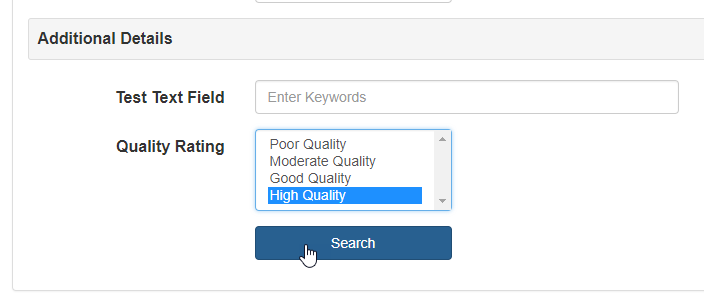
The results of this search should show the High Quality listing that you created.
Note: An important difference between an Option List field rather than a Text field is that, in the Advanced Search, the buyer searching can know all of the options the sellers might have used for that field. The Text field relies more on standard search criteria.
Creating a Date Field
In this example you will be creating a Manufactured On field for Sellers to attribute to the listing. This will allow the Seller to use a date picker to choose the date.
- Click the Create Listing Field button on the Listings > Custom Fields page.
- Fill in the Create Listing Field form with Date selected as the Type. Also, enable the Include on Invoice as well as the Assign to All Categories options.
- Once saved, create a new listing and fill in a Manufactured On date.
Viewing the Date Field
Let's take a look at how this field will look to the users.
- Go to the home page and click the Plus symbol next to the Search bar at the top of the page to open Advanced Search.
- Fill in a date range on the Manufactured On field that will include the listing you have just created.
The results of the search should include the new listing you created with a Manufactured On date
Viewing the Custom Field on an Invoice
The last field we created had the Include on Invoice option checked so that we can look at how the field will be displayed on an invoice. The following instructions will skim over some basics to get through the process a little faster.
- Now click Sell in the top left corner and create a listing using this new date field.
- Once the listing has been created you will need to sign in as a different user and put a bid on this item.
Note: The fastest way to create a new test user is to go to Admin Control Panel > Users > Management and click the Create User button. Fill in the form and the user is ready to be signed in.
- After the test user has placed a bid on this latest listing, sign in as the admin.
- Go to the listing's Listing Detail page and end the listing early using the End Early button on the Options bar above the Current Price.
- Now that this listing has been ended, go to the My Account > Listings > Successful page and click on Create Invoice.
- Finally, sign in as the winning bidder and navigate to My Account > Bidding > Won to click the View Invoice ID button.
Text, Decimal, Whole Number and Yes/No Fields
The process for creating a custom listing field for the remaining types of custom listing fields is quite similar to the process described in Custom Listing Field Basics. The Yes/No field (sometimes called a Boolean variable) has a different format for the default value. It says 'Check for "yes", unchecked for "no."'. This means that if you check the box next to Default Value, the field will appear in the Create Listing form as this box does.
Connecting Listing Fields to Categories
Adding Custom Listing Fields to certain categories can be very powerful. Helping sellers hit all of the important points and standardizing the ways buyers search for those products can make your site stand out as a leader in the field. If your site sells cars, people are going to want to know things like the mileage engine type and body style are. If you also sell trailers and Cargo Carriers, you won't want engine type to be a required field. Having already created a few Automotive listing fields, here are the steps to connect the fields to only the appropriate categories.
- Navigate to the Admin Control Panel > Categories > Edit page.
- Select the Category you want to edit and click the Edit button.
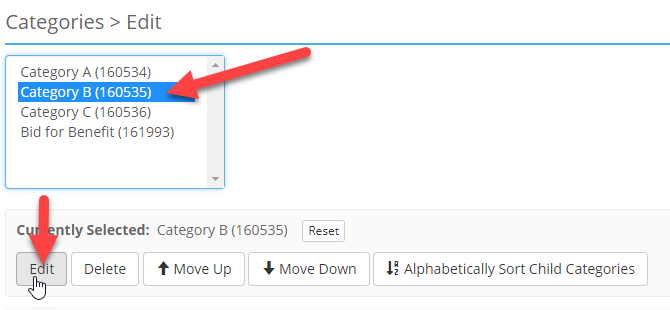
- On the Edit > Details page under the Custom Fields, select the "Apply custom field assignments to subcategories" check box and highlight one of the Automotive custom fields in the Available box. Click the Right arrow button ( > ) bring that field into the Assigned box.
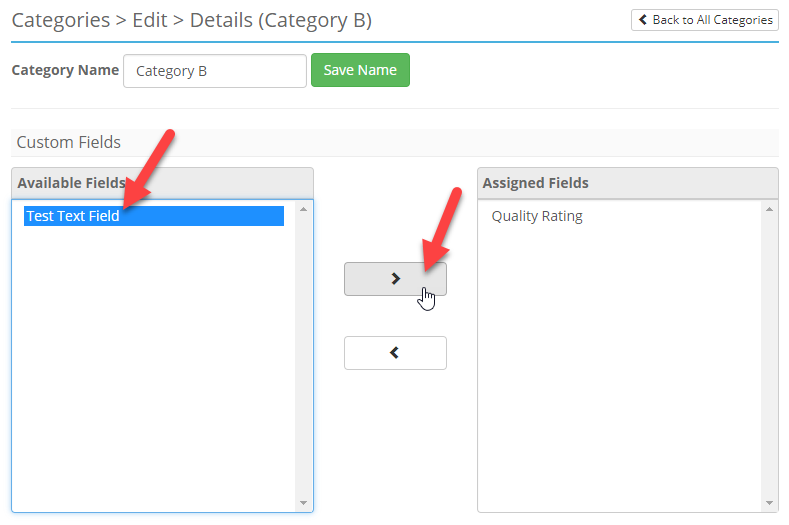
- To test that the fields were mapped to the category correctly, create a listing and select the category used above on the Create Listing - Step 1 of 2 page. The Additional Details on the next page should include all of the new fields.
Multilingual Support
The custom listing field names (and option list values) are compatible with the software translation options.
Note: Do not use spaces or special characters in any custom field names or values if you plan on utilizing a multi-lingual configuration.
Custom field strings should be added to /App_GlobalResources/CustomFields.resx and each language specific CustomFields.xx.resx file.
For more information on editing resx files see: Installation > Language Translation
