Event Custom Fields
Custom event fields are used to store additional information about events.
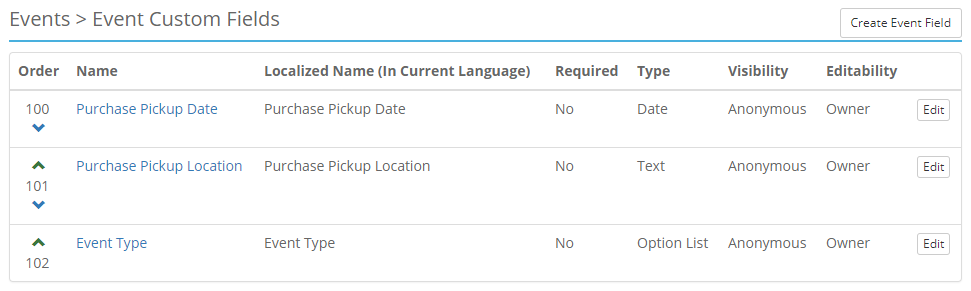
The following fields are available on the Create Event Field form or click the field's name to view the Edit Event Field form.
Name - (Required) This specifies the name of the Custom Event Field.
Type - (Required) This indicates the type of value the field will hold and what type of input will be presented.
- Text — Open text box.
- Text Area - Plain Text (no formatting) - A text area with multiple lines to enter longer responses.
- Text Area - HTML - A text area with the ability to enter rich text and HTML.
- Clickable Link - A custom field that allows for entering both the URL and the display text.
- Multi-column List - A custom field that allows for entering a comma separated list that will be displayed as an unordered list.
- Yes/No (Single Checkbox) — A checkbox.
- Date — Text box will display a date.
- Decimal Number — Text box will display a decimal format.
- Option List - Automatic — A list of options that will automatically switch between a dropdown list or radio buttons based on the number of options available. (4 or more options is the threshold where it switches to a dropdown list instead of radio buttons)
- Option List - Dropdown - A list of options that are displayed as a dropdown list.
- Option List - Radio Buttons - A list of options that are displayed as a series of radio buttons.
- Whole Number — Text box will display a whole number (integer) format.
Required - When checked, a value will be required to create an event.
Default Value - (Optional) This specifies a default value when the field is initially displayed to the event coordinator.
Example
For a field such as "Interior Color" a default value might be "black".
Include On Invoice - If checked, this custom field will be included on sales invoices.
Include in Sales Reports - If checked, this custom field will be included as a column in Sales Transaction Report CSV exports.
Note
This field will only be included in the My Account Sales Report CSV export if Visibility is also set to Owner or lower.
Include on Statement - If checked, this custom field will be included on consignor statements.
Include in Statement Report - If checked, this custom field will be included as a column in the Consignor Statement Report.
Display Order - This is a numerical value which specifies the order to display this field relative to other event fields. The new field's display order can easily be changed on the main view of Event Custom Fields.
Note
The up and down arrow buttons can be used to change the display order of the custom fields.
Visibility - This determines what type of user can view this custom field.
- None - No one, including the system, can view this custom field.
- System - The system is the only user that will be able to view this custom field.
- Admin - The Administrator and the above users are the only users that will be able to view this custom field.
- Owner - The user that the information pertains to and the above users are the only users that will be able to view this custom field.
- Purchaser - The user that submitted a bid or purchased from the lot that this information pertains to and the above users are the only users that will be able to view this custom field.
- Authenticated - Any user that has been authenticated and the above users are the only users that will be able to view this custom field.
- Anonymous - Anyone can view this field.
Editability - This determines what type of user can edit this custom field.
- None - No one, including the system, can edit this custom field.
- System - The system is the only user that will be able to edit this custom field.
- Admin - The Administrator and the above users are the only users that will be able to edit this custom field.
- Owner - The user that the information pertains to and the above users are the only users that will be able to edit this custom field.
- Purchaser - The user that submitted a bid or purchased from the lot that this information pertains to and the above users are the only users that will be able to edit this custom field.
- Authenticated - Any user that has been authenticated and the above users are the only users that will be able to edit this custom field.
- Anonymous - Anyone can edit this field.
Manage Field Options
This section will only appear after the Option List has been selected as the Type and the field's basic information has been saved.
Name - This value will be displayed to the user when selecting the option from the dropdown or radio buttons.
Value - This value will be displayed on the lot detail page.
Note
Leave this field blank if it should not be displayed on the detail page when selected by the user.
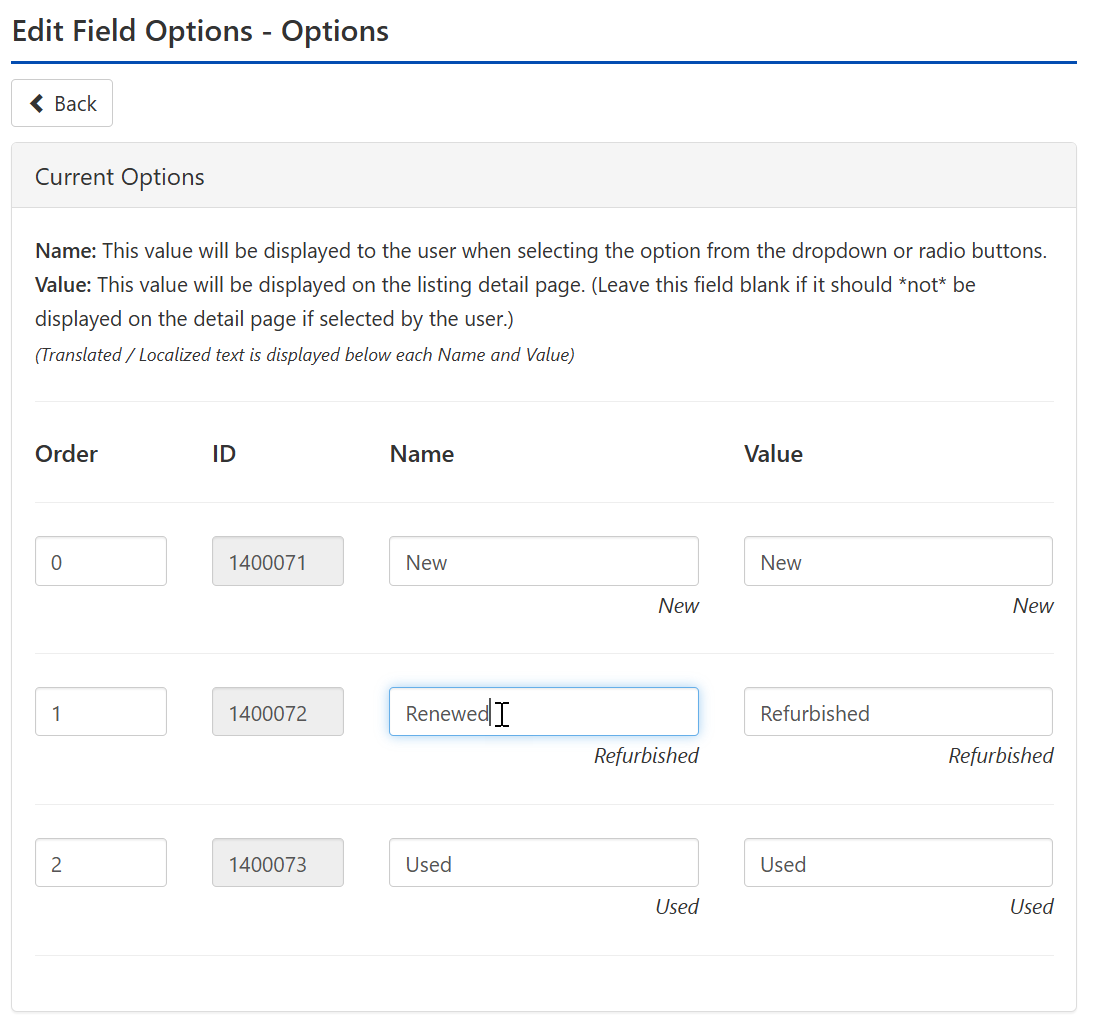
Edit Field Options - This page allows you to edit the Name or the Value or the Display Order of the Field Options for Option List type Custom Fields.
Alphabetize by Name - Clicking this link will Alphabetize the list of Options.