Preferences
This section provides settings specific to Events.
Default Lot Number Format - If a seller does not enter a lot number, one will be automatically assigned. The number assigned will be formatted with the number of characters entered in this setting.
Note
Example: When the Default Lot Number Format is set to "1", the lots will be assigned a lot number starting with "1". When the Default Lot Number Format is set to "3" the lots will be assigned a lot number starting with "001".
Default Event Closing Group Increment (Seconds) - This value, in seconds, will prefill the Closing Group Increment field when creating a new Event.
Default Event Auto Extend Increment (Seconds) - This value, in seconds, will prefill the Auto Extend Increment field when creating a new Event.
Enable Summary - If enabled, a Summary field will be available when creating or editing an event.
Enable Managed By - If enabled, a Managed By field will be available when creating or editing an event.
Enable Description - If enabled, a Description field will be available when creating or editing an event.
Enable Terms & Conditions - If enabled, a Terms & Conditions field will be available when creating or editing an event.
Enable Shipping Info - If enabled, a Shipping Info field will be available when creating or editing an event.
Require Admin to Publish Event - If enabled, non-admin sellers will not be able to publish event immediately. Instead, when the Publish Event option is clicked by a non-admin an email notification is sent to the address configured in the Site Preferences > Contact: Administrator Email field with links to publish or view the event. The admin can also publish the event at any time by impersonating the seller and clicking Publish Event from the dropdown options.
Enable Follow Auction Live - If enabled, users will have the option to click a Follow Auction Live checkbox which automatically redirects them to the first Lot closing in the current Event and will advance to the next Lot as soon as the current Lot ends.
Note
When enabled in the Admin Control Panel, each Auction Event will have its own setting to enable or disable the ability for users to Follow Auction Live on the Create Event and the Edit Event pages.
Add all new lots to the same auto-extend group - When enabled, the system will automatically add new Lots to the same auto-extend group, so that each Lot in the Event will close one at a time and in the original Lot Order.
Note
Changing this setting will only affect new Lots.
Rolling Lot Updates - When enabled, a new option will be available to bidders on an Auction Event page: Auto Hide Ended Lots. When selected, Lots will automatically disappear from the Auction Event page as they close. New lots will automatically appear at the bottom of the list to replace them.
Note
When an auction event begins closing and "Accepting Final Bids", the Auto Hide Ended Lots option will be enabled for bidders by default, but they can still manually turn this off if bidders want to keep all Lots visible and navigate through pages of Lots.
Enable PDF Attachments - When enabled, Sellers will be able to attach one or more PDF documents to their auction events.
Closing Event Page Size - When an event is in the "Closing" status this value determines the initial number of lots shown on the auction event catalog view.
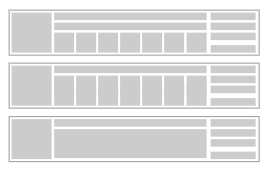
Default Homepage Event List Style:
- Lot Images (Cropped Square): Up to 10 lot images will be displayed (in order of lot number low to high) below a single line of the Event Summary.
- Lot Images (Portrait): Up to 10 lot images will be displayed (in order of lot number low to high).
- Event Summary: Event "Summary" text will be displayed instead of lot thumbnails.
Note
All events will display in this style on the homepage unless "Allow Homepage List Style Per Event" is enabled.
Allow Homepage List Style Per Event - If enabled, Homepage list style will be selectable for each auction event.