How to point a Subdomain to your RainWorx Web Hosting Account (from GoDaddy.com Domain Management)
This is a guide for pointing your subdomain from a provider like GoDaddy to an AuctionWorx installation that is hosted with RainWorx.
Note
As a courtesy, we provide information about how to use certain third-party products, but we do not endorse or directly support third-party products and we are not responsible for the functions or reliability of such products.
The goal is to add a DNS A record to point a subdomain at the AuctionWorx installation hosted by RainWorx. This applies to any hosting provider. Though the steps may vary with other hosting providers, they will all use a DNS A record to point a subdomain to a specific IP address.
-
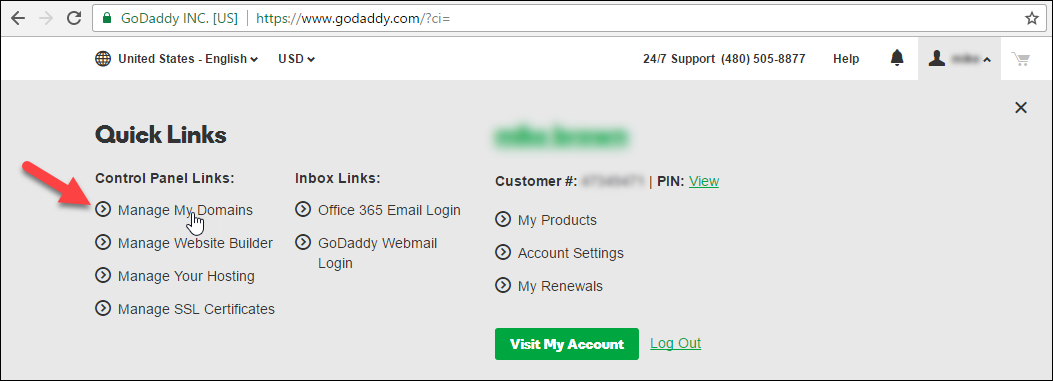
To get started login to your GoDaddy account and click on your name in the top right corner. Click the Manage My Domains quick link.
-
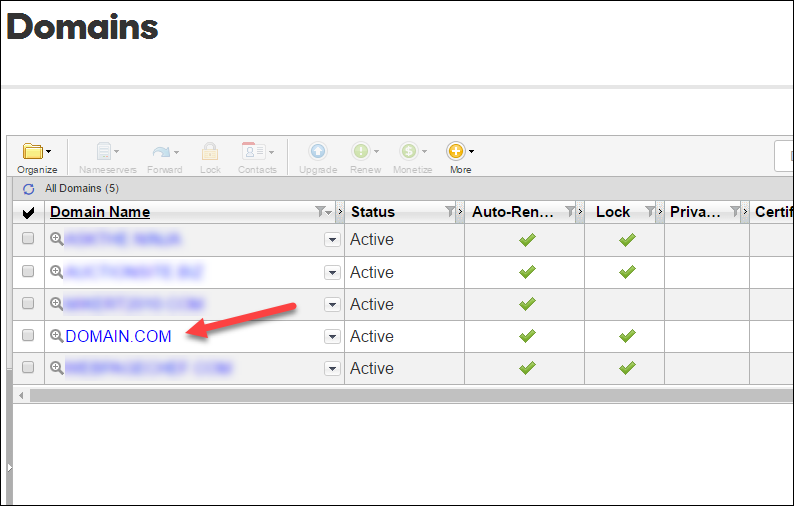
On the My Domains page, find the domain you want to edit and click the link to manage that domain.
-
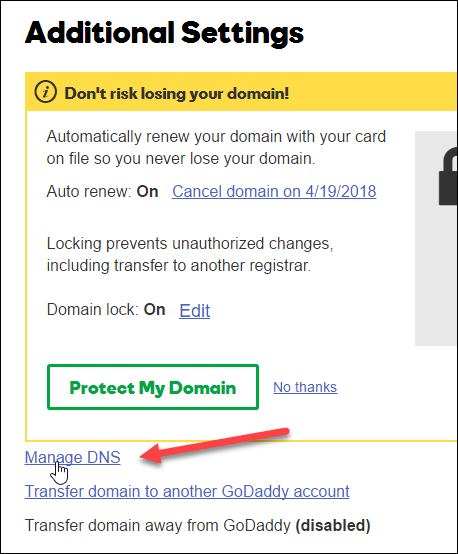
Scroll to the bottom of the Domain Settings page and click the Manage DNS link under Additional Settings.
-
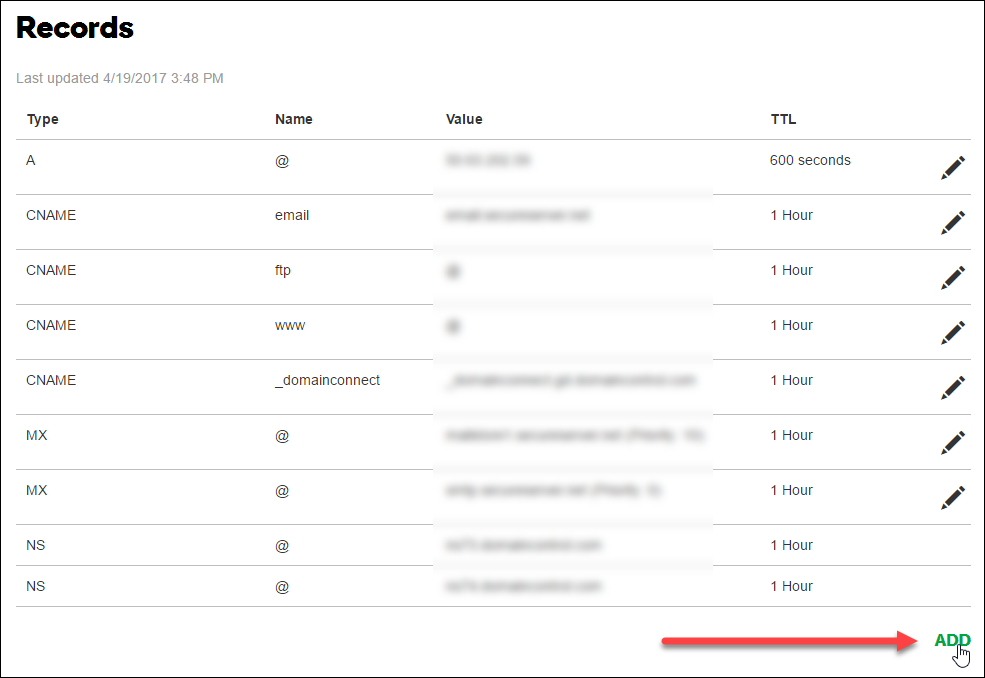
On the DNS Management page, scroll down to the Records section and click the Add button at the bottom.
-
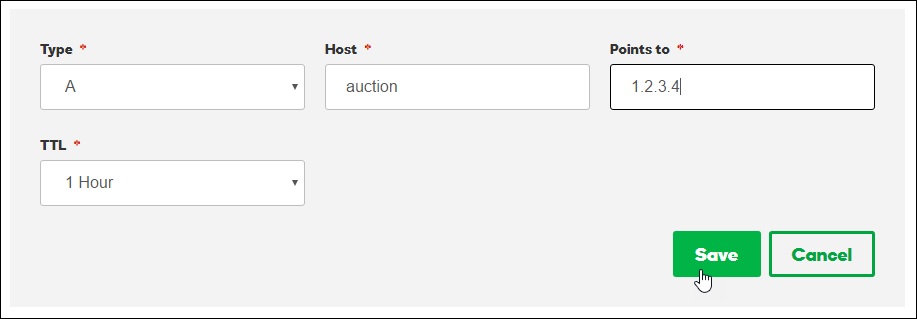
To add "auction" as the subdomain (e.g. auction.domain.com) select the record Type as "A", enter "auction" as the Host and the IP address that RainWorx Hosting has sent you under Points To. TTL can be left at 1 Hour.
-
Once the settings have been changed on GoDaddy be sure to contact RainWorx Support to tell them the specific domain name that you've changed the DNS records for. The best way to contact RainWorx Support is to open a Support Ticket.
Note
Once the DNS records have been changed, please allow up to 48 hours for global propagation.