Setup Auto Response for MailEnable
These are instructions for setting up an Auto Response in MailEnable.
Note
This tutorial only applies to clients that use RainWorx Hosting for their email service.
When you sign up for RainWorx Hosting you will be sent an email with the important login details. Find this email before moving on with the following instructions.
Note
If you cannot find this email your login information can be requested from RainWorx Support by opening a support ticket.
Login to MailEnable Email Portal
You'll want to login to the mailbox of the email account you want to have an Auto Response setup for.
- Navigate to the MailEnable Email Portal: https://storm.rwasphost.com/MEWebMail
-
Login with your username and password.
Note
Your username will be the email address without the domain extension (example: noreply@domain without the .com)
-
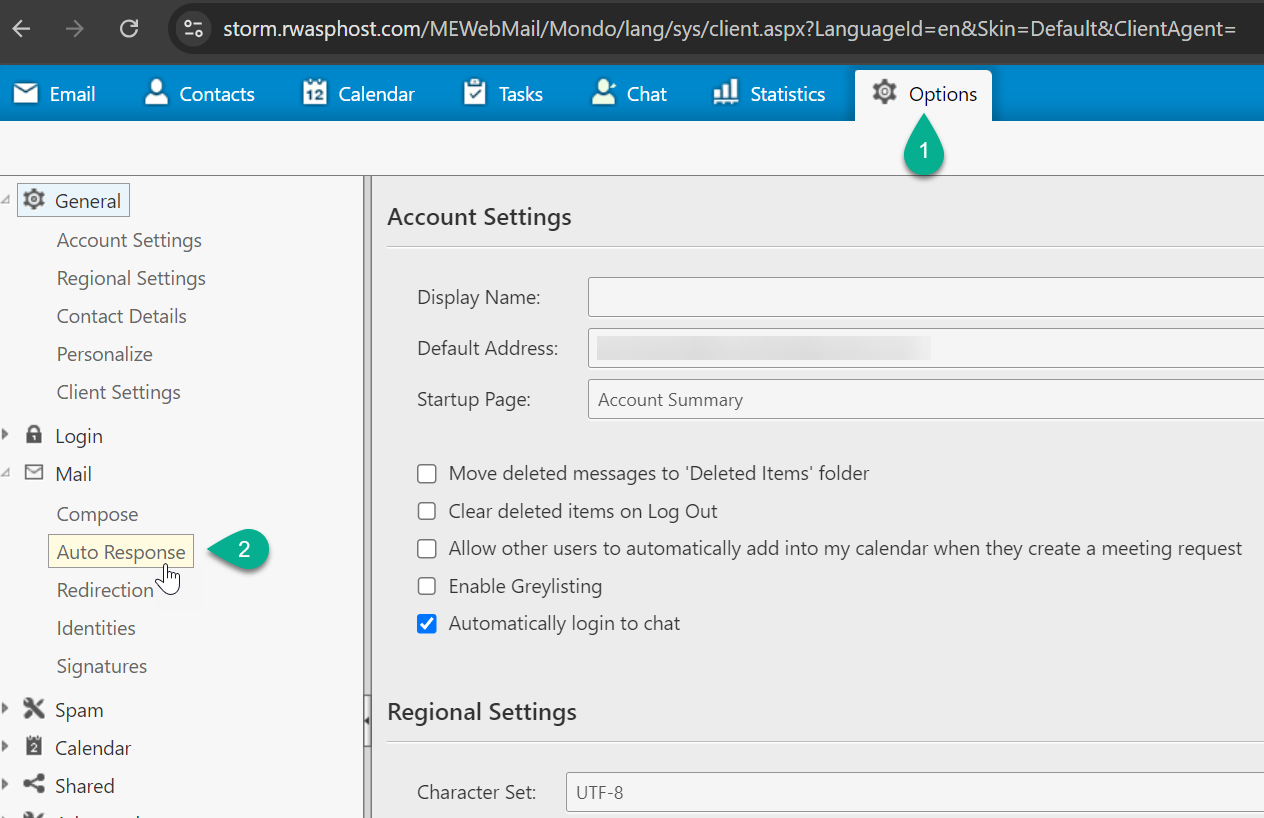
Click the Options tab at the top and then select the Mail > Auto Response option from the navigation on the left.
-
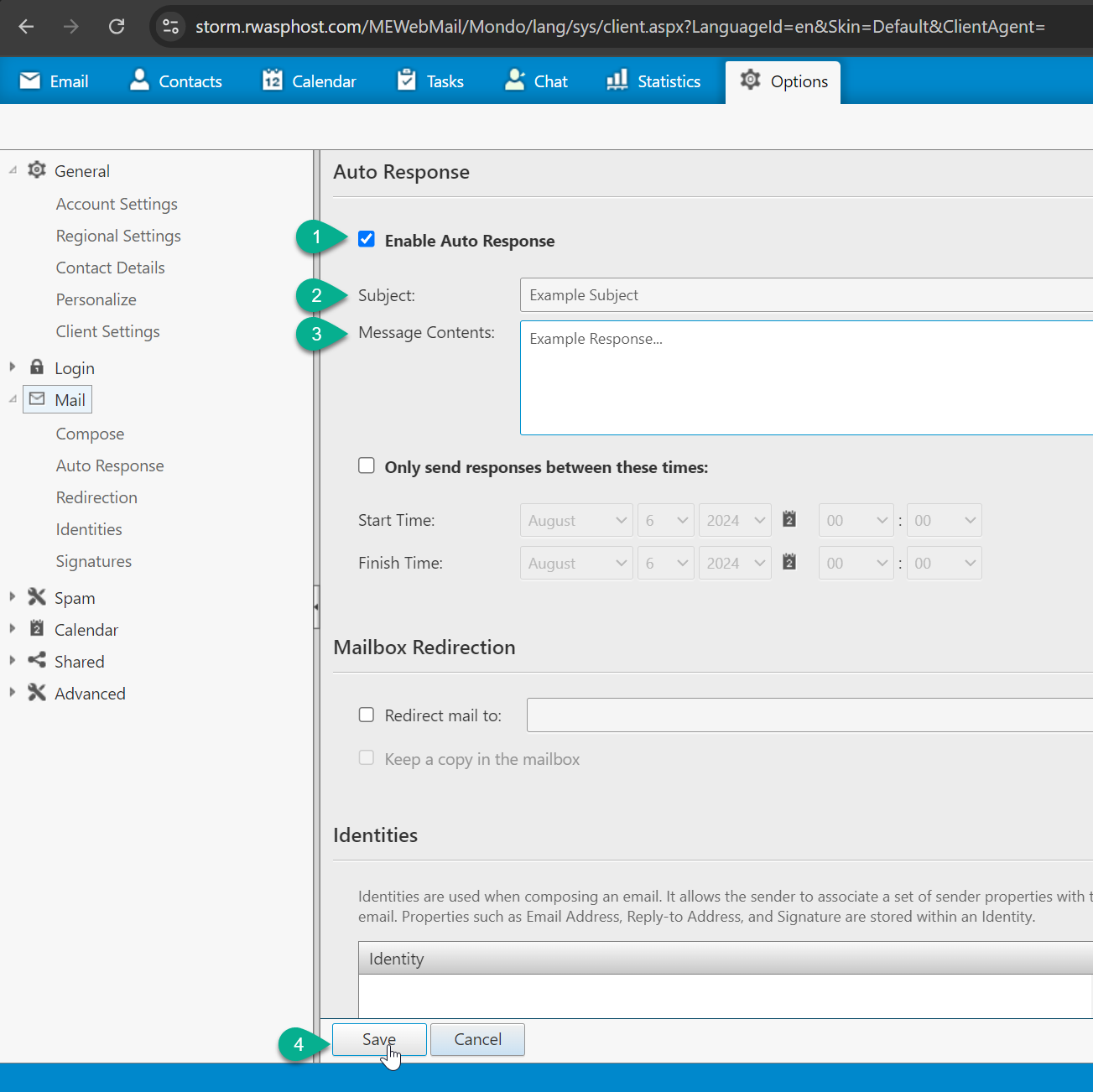
Click the Enable Auto Response checkbox and then fill in your Subject and Message. Then click Save.