Stripe Setup Quick-Reference Guide
Note
This guide assumes you have completed your application process with Stripe and you have setup a Stripe Connect account.
Note
This guide only covers connecting your site to use Stripe for Site Fee invoices. There are additional steps beyond this guide for connecting Stripe to your AuctionWorx User.
The goal is to collect 3 pieces of information from Stripe to input into your AuctionWorx site:
- Client ID / Account ID
- Public API Key
- Secret API Key
A secondary goal will be to setup the Stripe Redirect URI so that third party sellers will be able to connect their own Stripe account to their AuctionWorx User.
- Redirect URI (
https://example.com/Stripe/HandleStripeConnectResponse)
Account ID and API Keys
- Sign into your Stripe account.
-
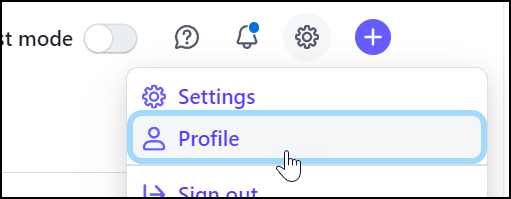
Click Profile from the Gear menu.
-
Scroll down to the bottom of the page and copy the Account ID from the Accounts section. Copy this information to your notes.

-
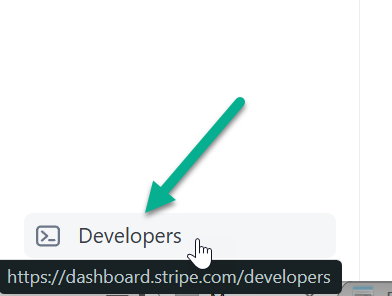
Click the Developers button at the bottom left of the Stripe Dashboard.
-
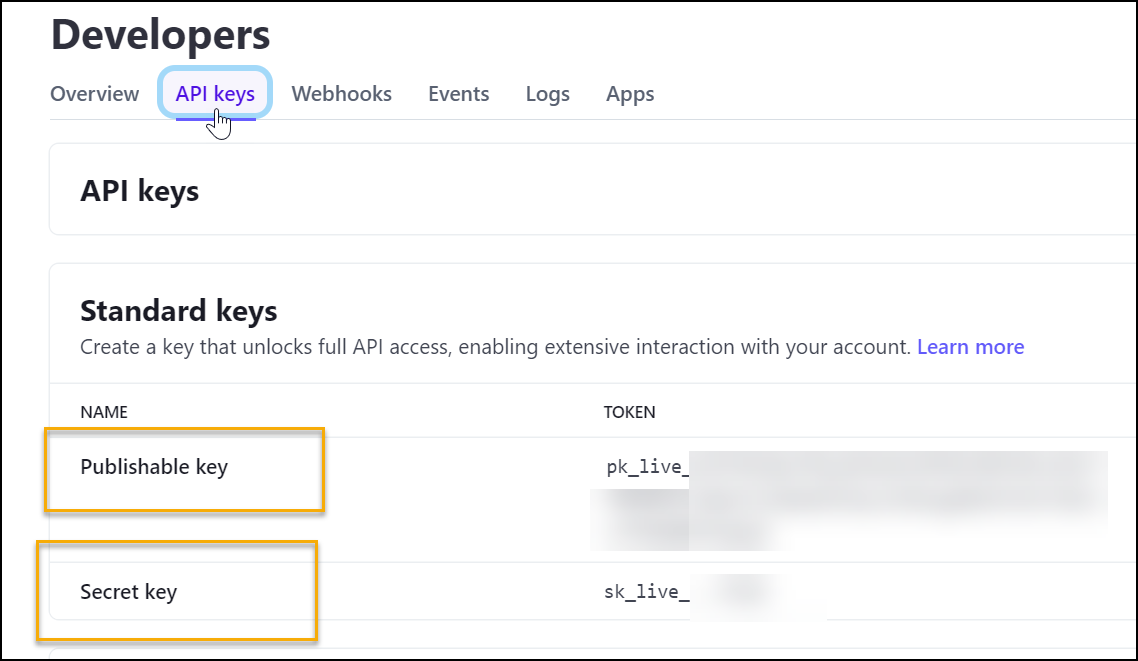
Click the API Keys tab. Copy the Publishable Key and the Secret Key to your notes.
-
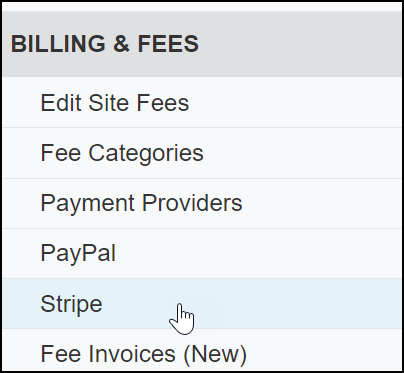
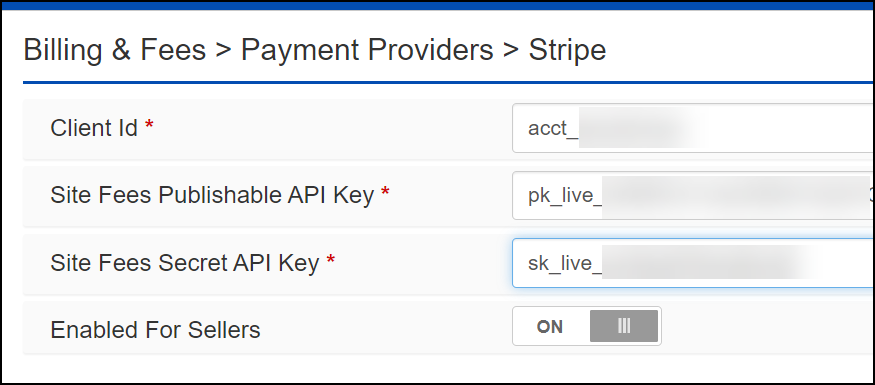
Go to your AuctionWorx site and open the Admin Control Panel > Billing & Fees > Stripe page.
-
Update the Client ID with your Account ID and enter the API Keys from your notes. Then click Save Configuration.
Redirect URI
- Return to your Stripe Dashboard.
-
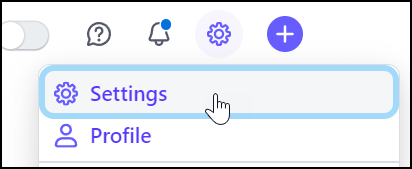
Open the Settings page.
-
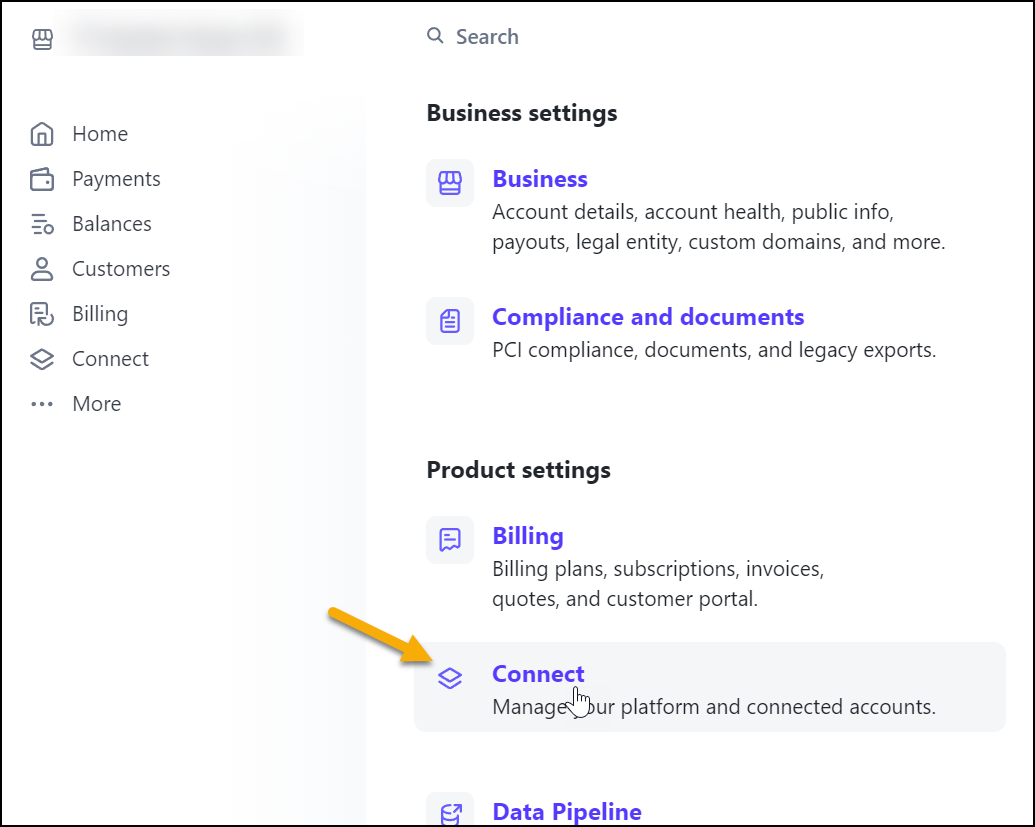
Click Connect from the Product Settings section.
-
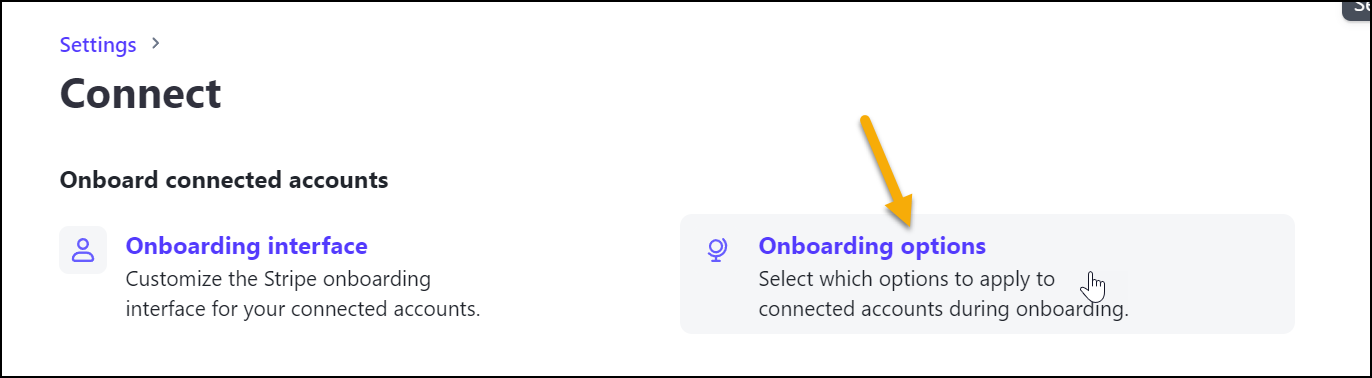
Click the Onboarding Options link.
-
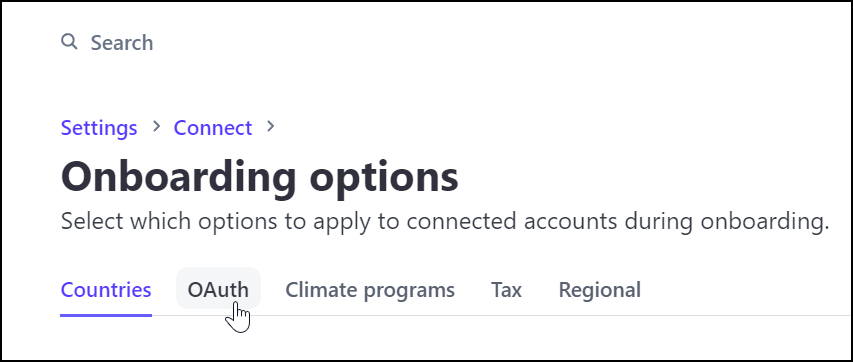
Click the OAuth tab.
-
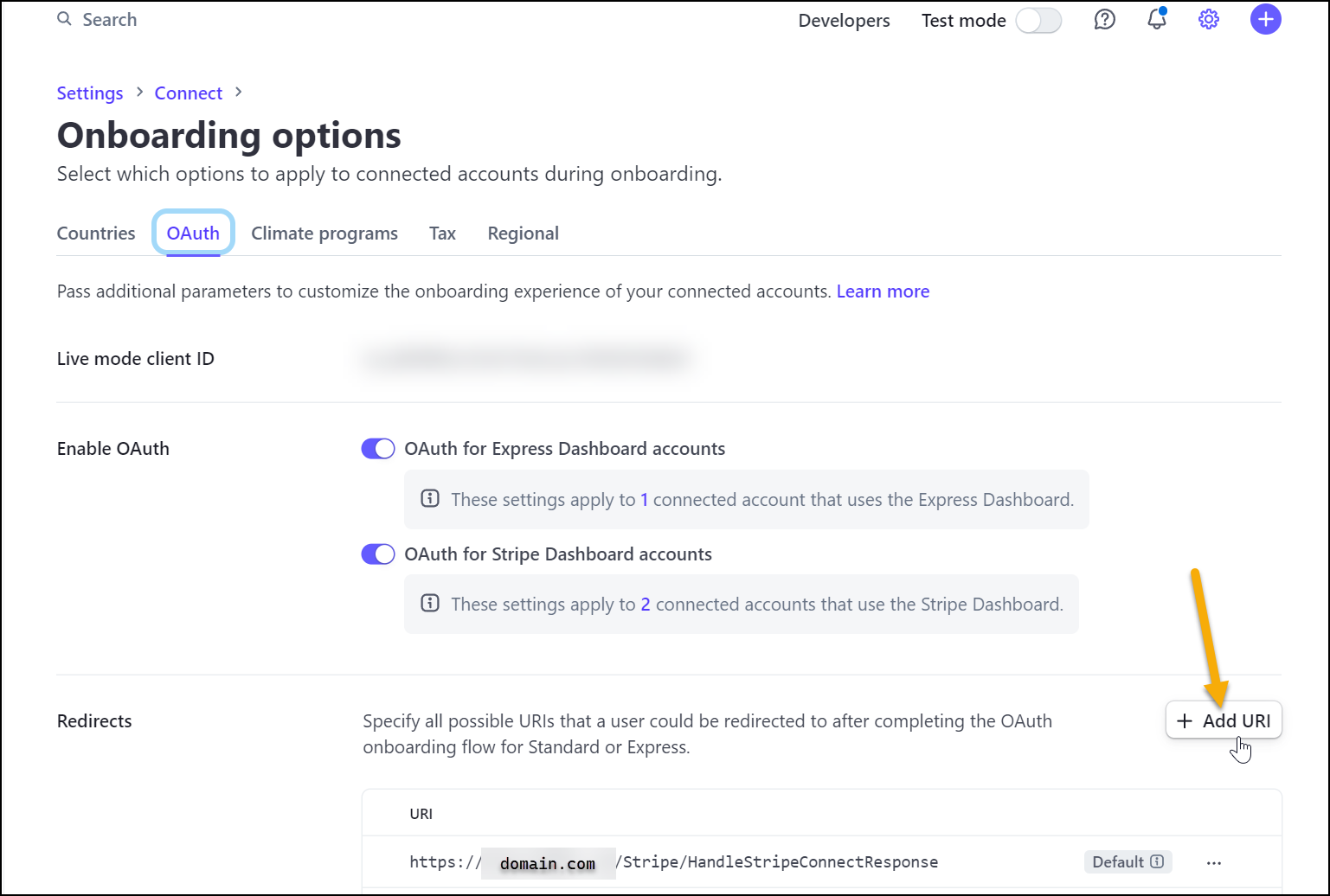
Scroll down to the redirects section and click the Add URI button.
-
Update the URI with the following URL, replacing example.com with your domain name: (
https://example.com/Stripe/HandleStripeConnectResponse)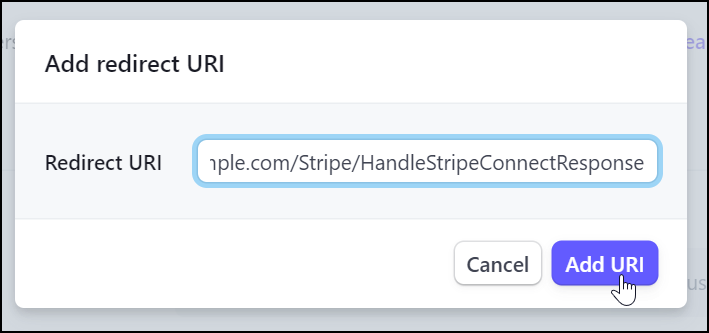
When you are done with these steps, you should test your Stripe integration to confirm it is working as expected.
If the Stripe connection is not working, you should contact the RainWorx Support team: https://www.rainworx.com/support