Recaptcha Setup
These are instructions on how to setup Google's reCAPTCHA to be enabled on the Contact Us page and the Registration page. Visit https://www.google.com/recaptcha to get started.
-
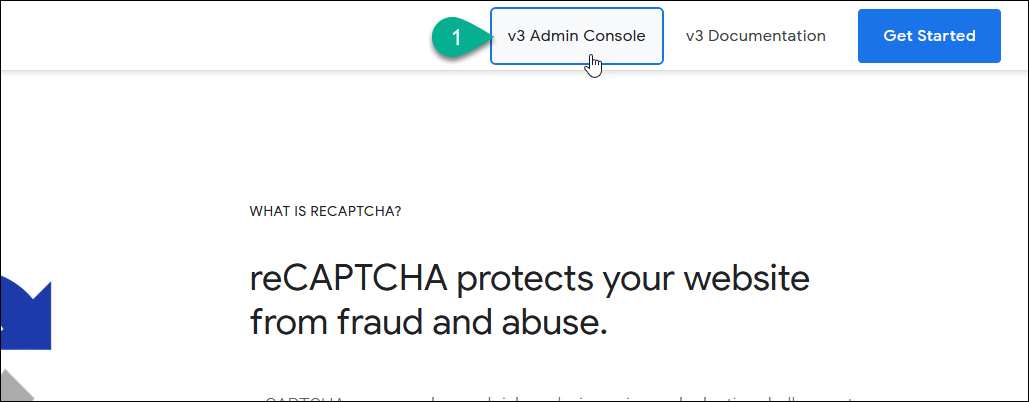
Click on the v3 Admin Console button.
-
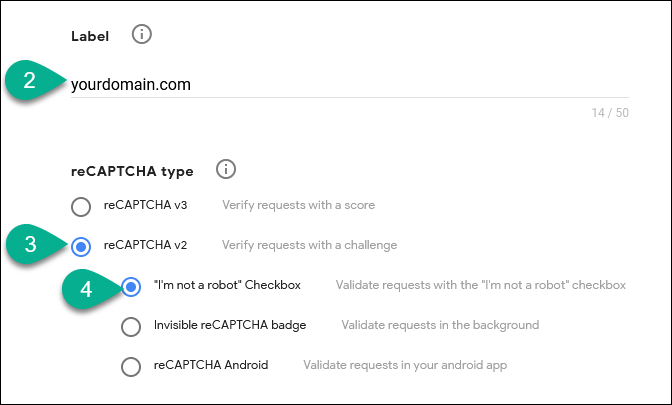
Add a Label. (enter the domain name)
- Select reCAPTCHA v2.
-
Select "I'm not a robot" Checkbox.
-
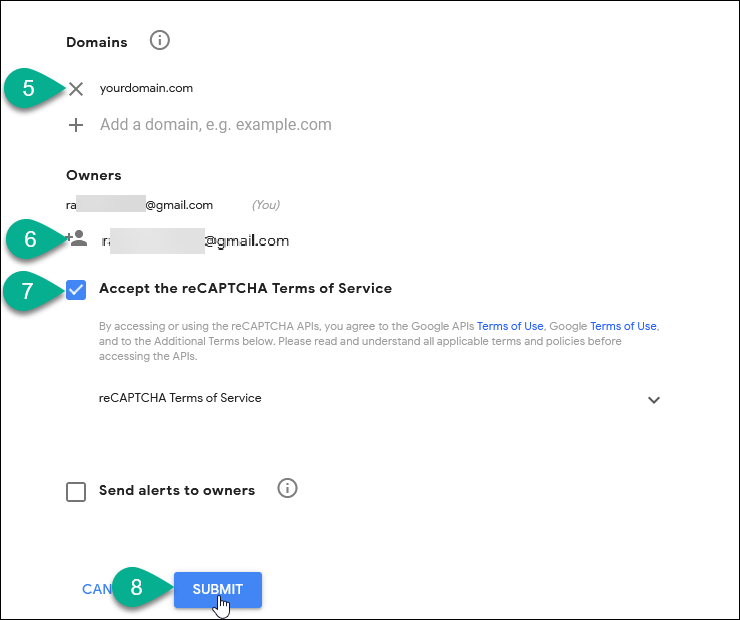
Enter the domain name that AuctionWorx lives on. Include a subdomain if it applies. (Eg, bid.auctionsite.com)
- Add a google user as the owner. If you use Gsuite you should be able to use your email address, otherwise the email address should end in "@gmail.com"
-
Check the Accept the reCAPTCHA Terms of Service.
Note
Alerts are not important. You can choose to receive them or not. This is just a preference.
-
Click Submit.
-
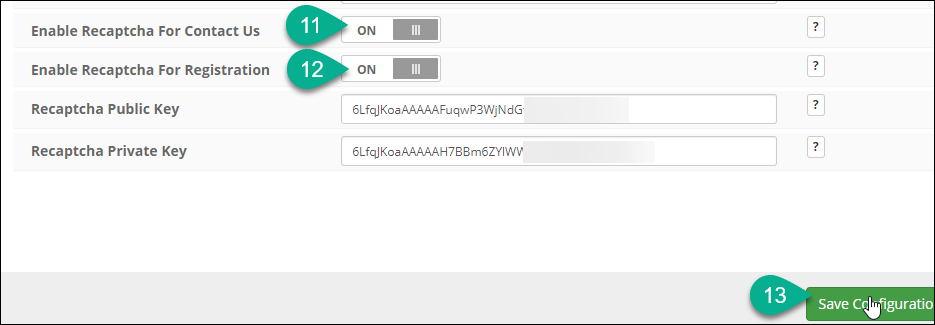
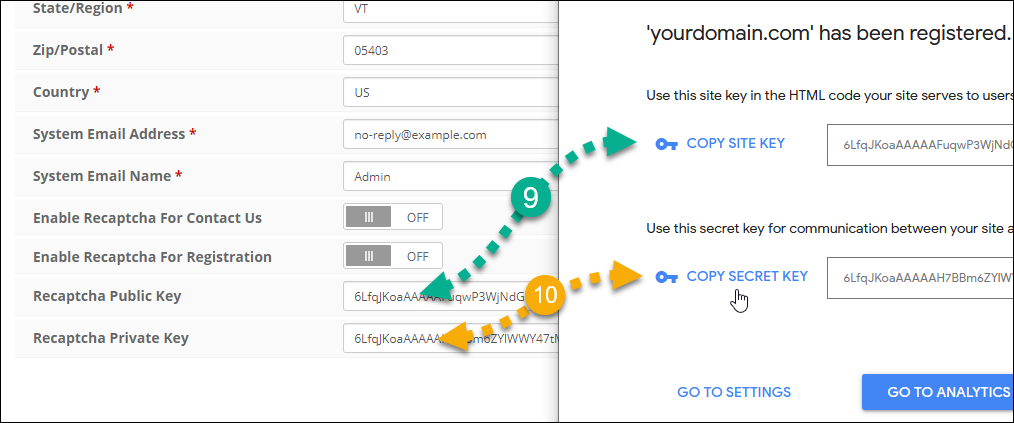
Copy the SITE KEY from Google into the Recaptcha Public Key on the Admin Control Panel > Site Preferences > Contact page in AuctionWorx.
-
Copy the SECRET KEY from Google into the Recaptcha Private Key on the Admin Control Panel > Site Preferences > Contact page in AuctionWorx.
-
Turn on the Enable Recaptcha For Contact Us setting.
- Turn on the Enable Recaptcha For Registration setting.
-
Click the Save Configuration button on the bottom left.