Purchasing a Domain from GoDaddy
This is a guide for purchasing a domain name from a provider like GoDaddy for an AuctionWorx installation that is hosted with RainWorx.
Note
As a courtesy, we provide information about how to use certain third-party products, but we do not endorse or directly support third-party products and we are not responsible for the functions or reliability of such products.
-
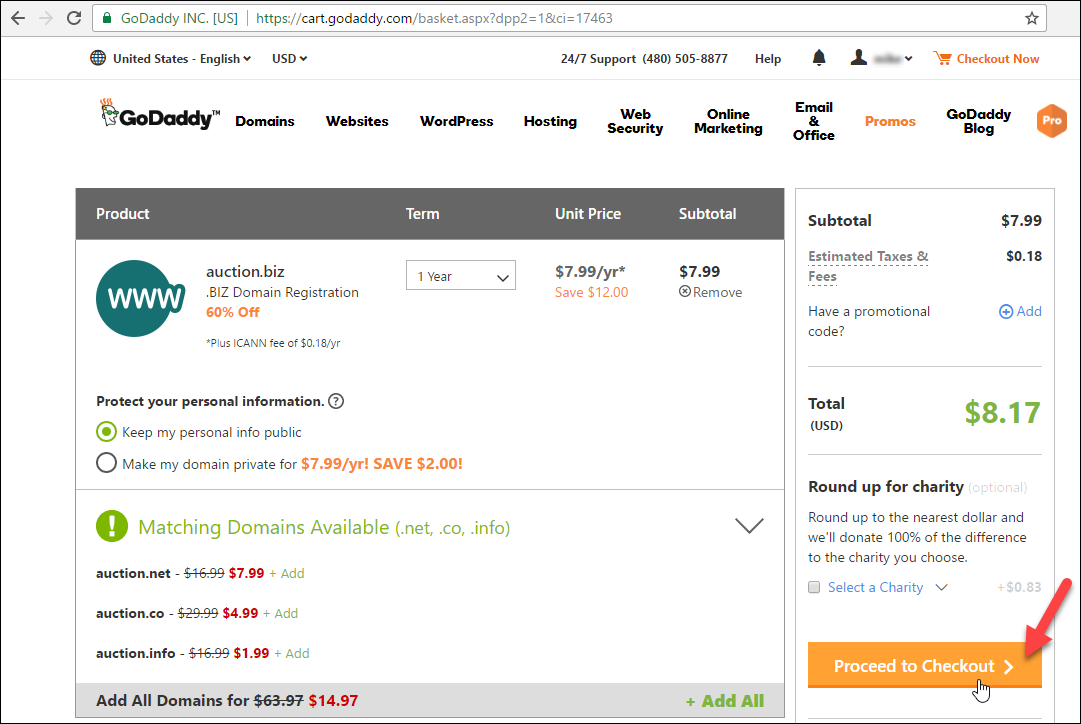
Visit GoDaddy.com and purchase a domain name.
-
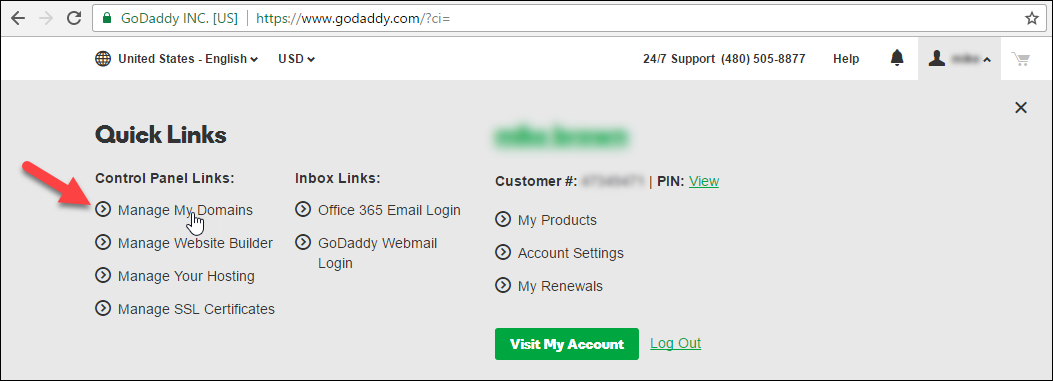
After the checkout process you will need to change the DNS setting to point to the RainWorx Domain Name Servers. Click on your name in the top right corner and click the Manage My Domains quick link.
-
On the My Domains page, find the domain you just purchased, click the gear icon in the top right corner and select Manage DNS.

-
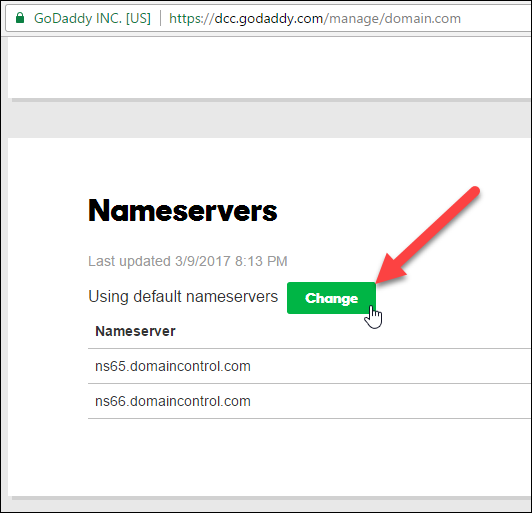
Scroll down to Nameservers and click the Change button.
-
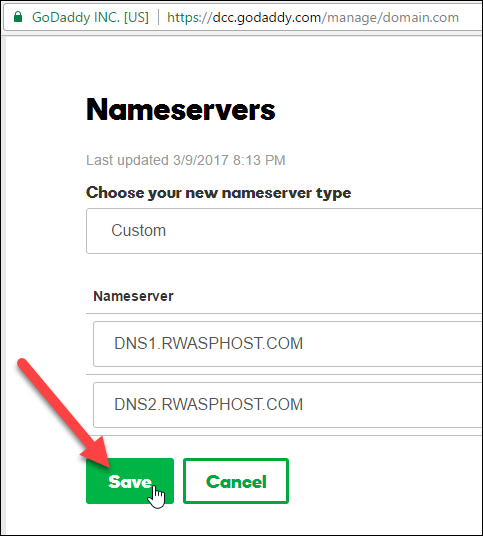
Choose your new nameserver type as Custom and enter in the following server addresses:
DNS1.RWASPHOST.COM
DNS2.RWASPHOST.COM
...and click the Save button.
-
Once the settings have been changed on GoDaddy, be sure to contact RainWorx Support to tell them the specific domain name that you've changed the DNS records for. The best way to contact RainWorx Support is to open a Support Ticket.
Note
Once the DNS records have been changed, it may take 24 to 48 hours for DNS changes to propagate across the internet.