Setting Up Google Maps API
AuctionWorx supports using the Google Maps API for displaying a map on the Listing Detail page in AuctionWorx Enterprise. A map can also be displayed on the Event Details page for AuctionWorx Events Edition.
Set up a project in Google Cloud Console
Google Maps API requires an account with Google Cloud Console. You will need to setup a profile, a new project and billing for that account before you will be able to generate an API Key to enter into AuctionWorx.
- Visit this link: https://developers.google.com/maps
-
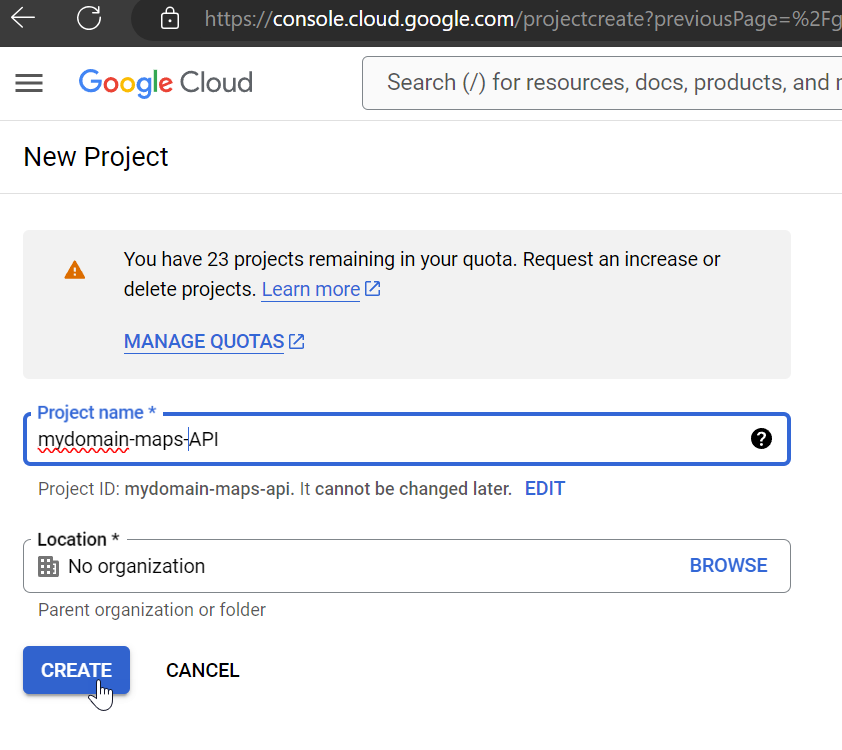
Create a new Project.
-
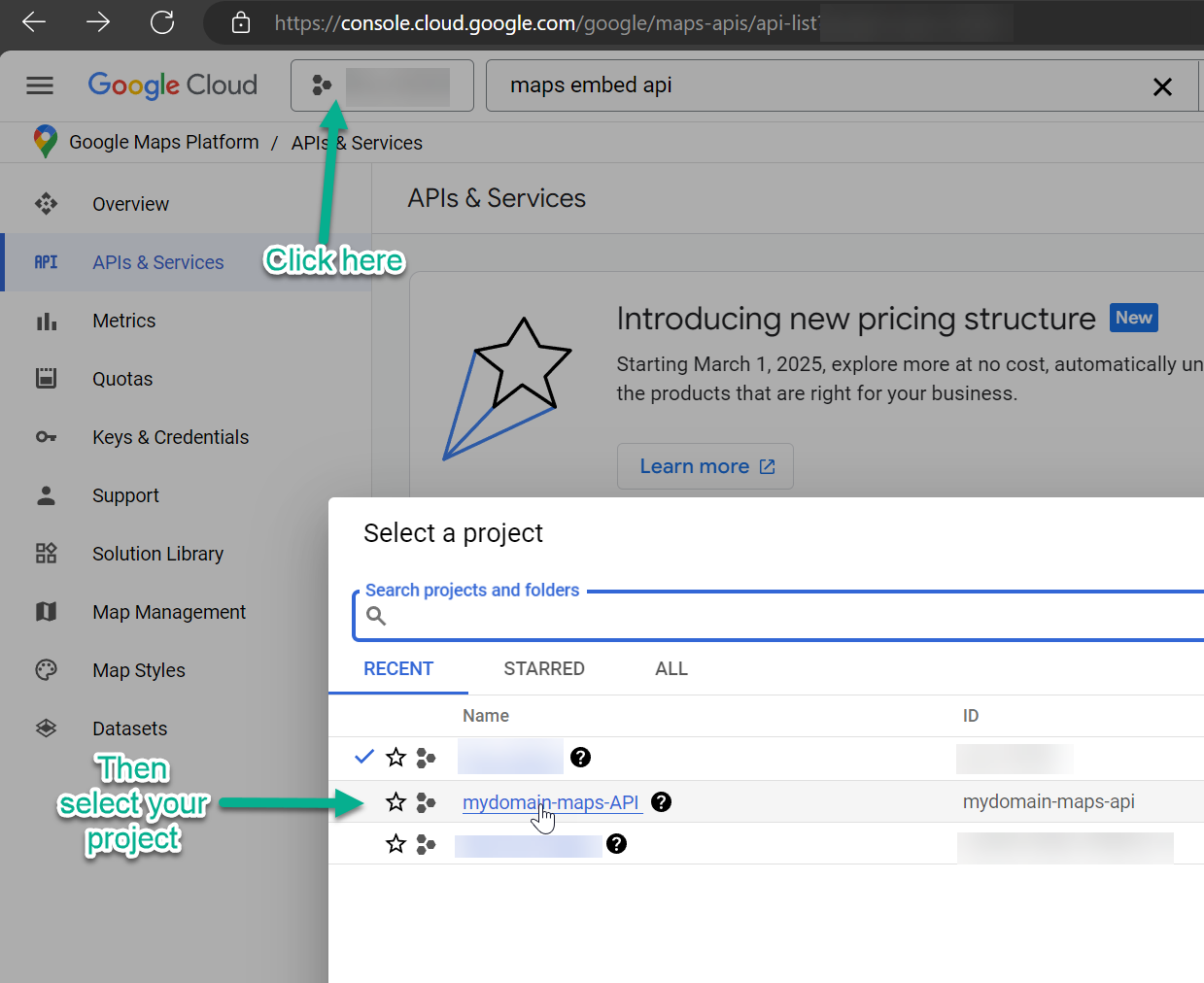
After creating the new project, select the project from the project selector at the top.
-
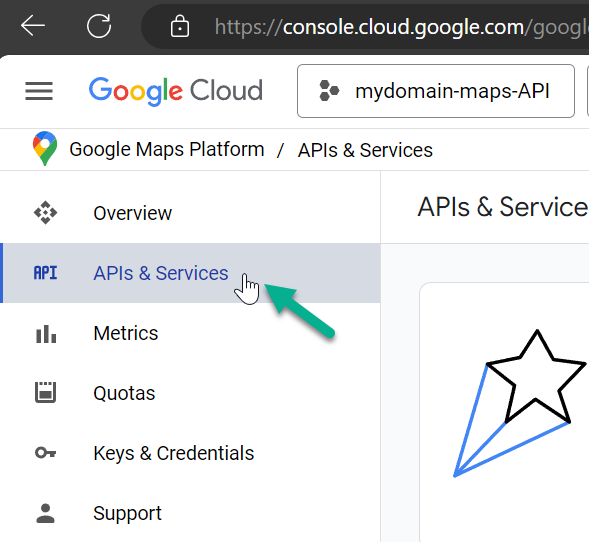
Select the APIs and Services option from the navigation.
-
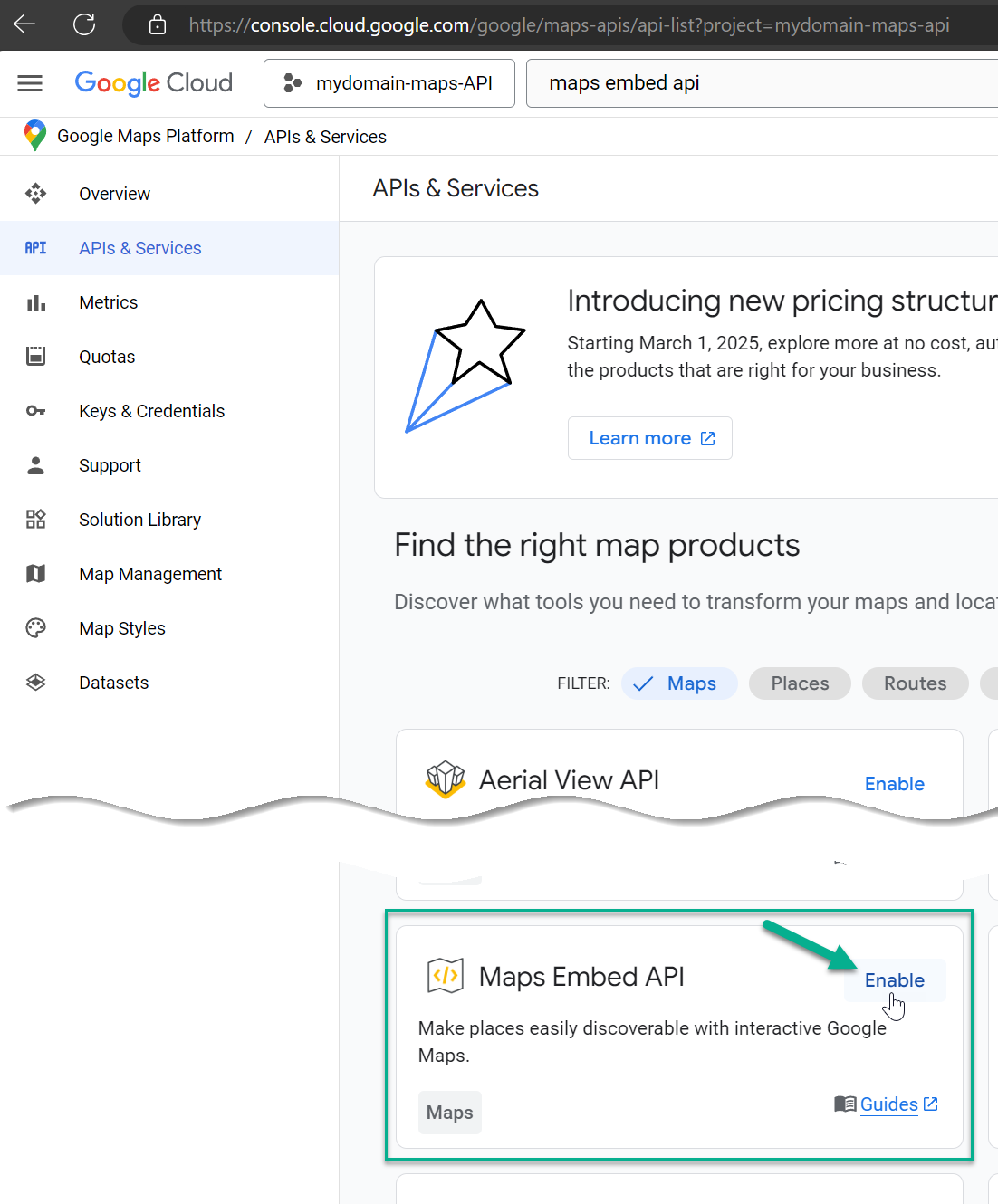
Find the "Maps Embed API" option and click Enable.
-
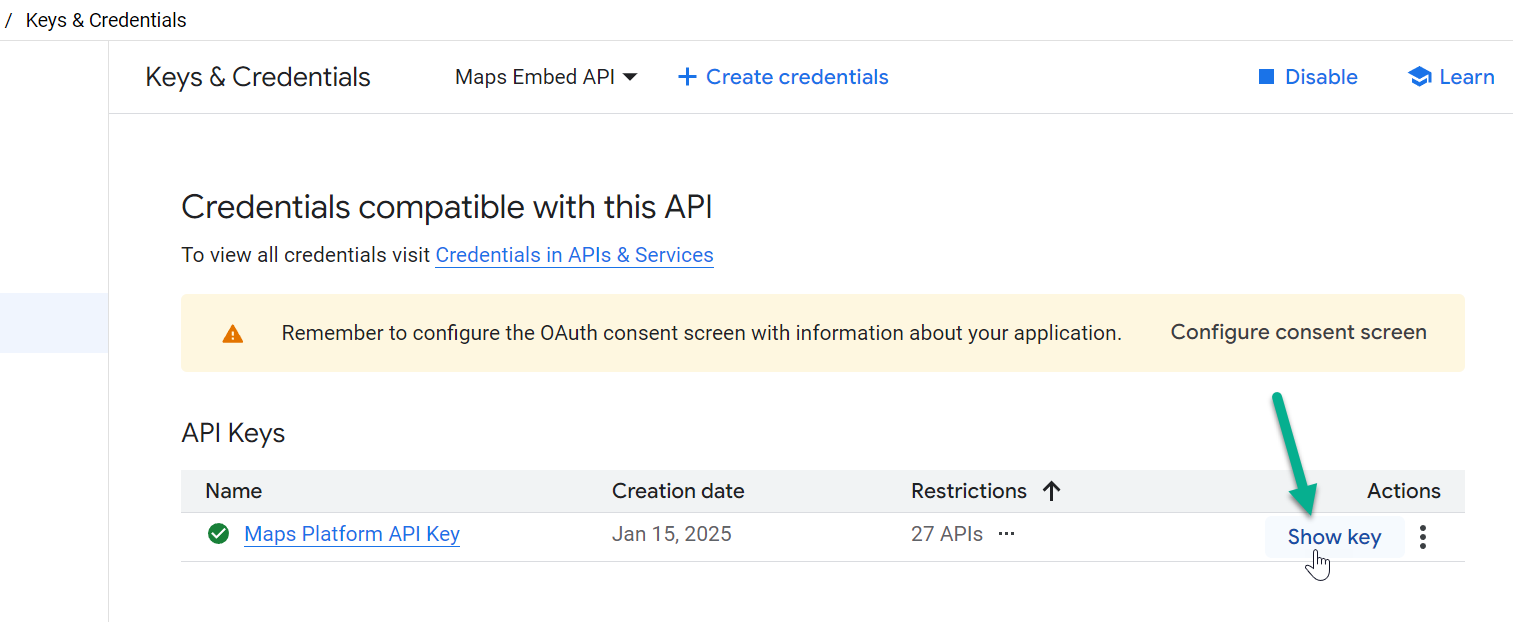
Click the Show Key button.
-
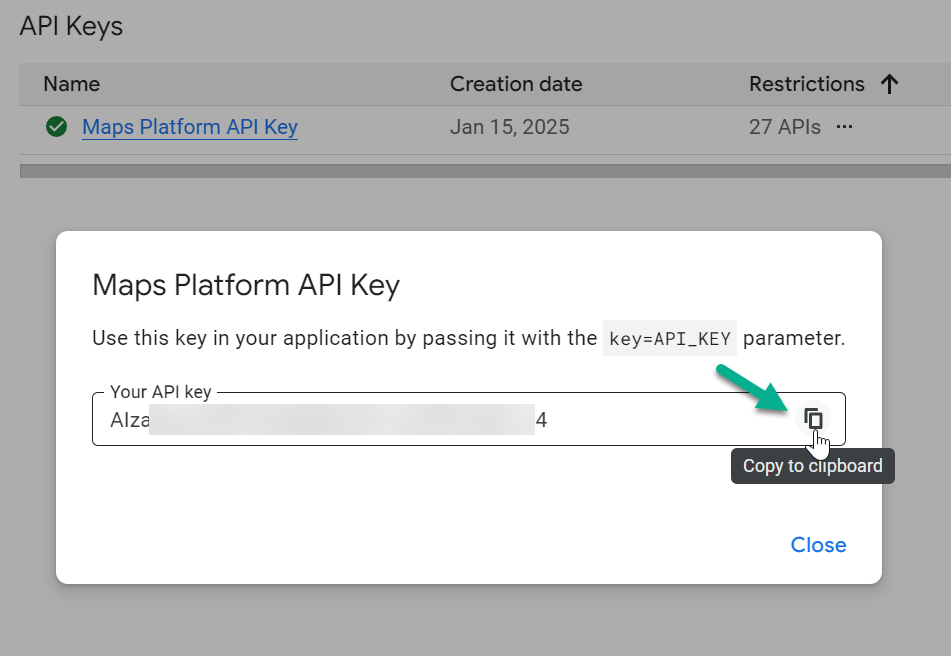
Copy the Key.
-
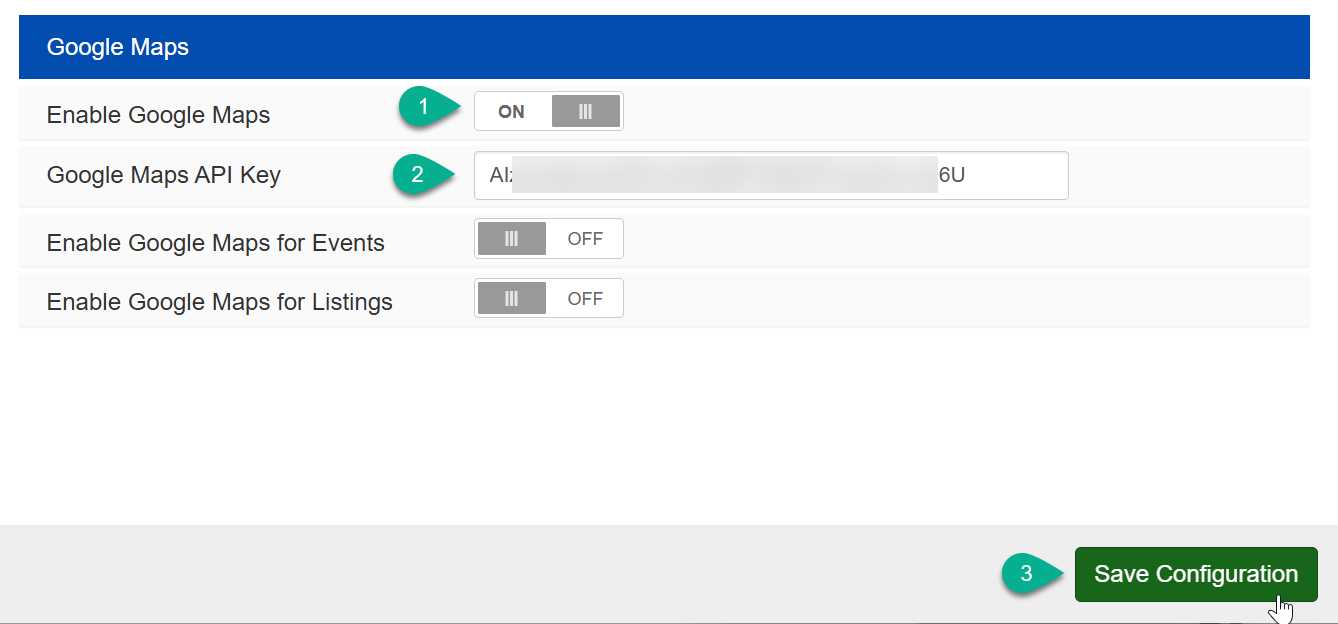
On your AuctionWorx site, navigate to the Admin Control Panel > Site Preferences > Display page. You can paste your API Key in the Google Maps API Key field. Then click Save Configuration.
-
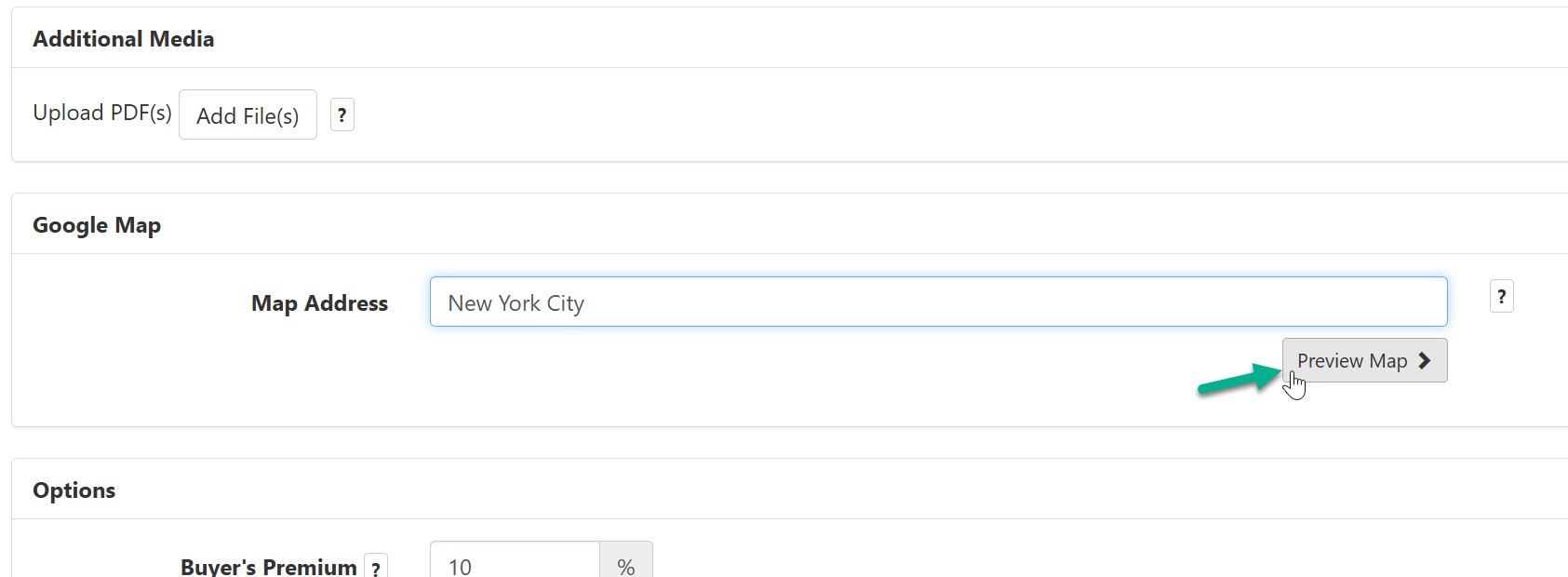
Once saved, you can enable Google Maps for Events and Listings. You'll find the Map Address field on the Create Event form or the Create Listing form. You can click the Preview Map button to see what will be displayed to the end users.