How to Request and Install an SSL Certificate from GoDaddy
This guide is for requesting an SSL certificate from a provider like GoDaddy for an AuctionWorx installation that is hosted with RainWorx.
Note
As a courtesy, we provide information about how to use certain third-party products, but we do not endorse or directly support third-party products and we are not responsible for the functions or reliability of such products.
Note
The process for validating domain ownership may vary if the domain name was not purchased through GoDaddy.
-
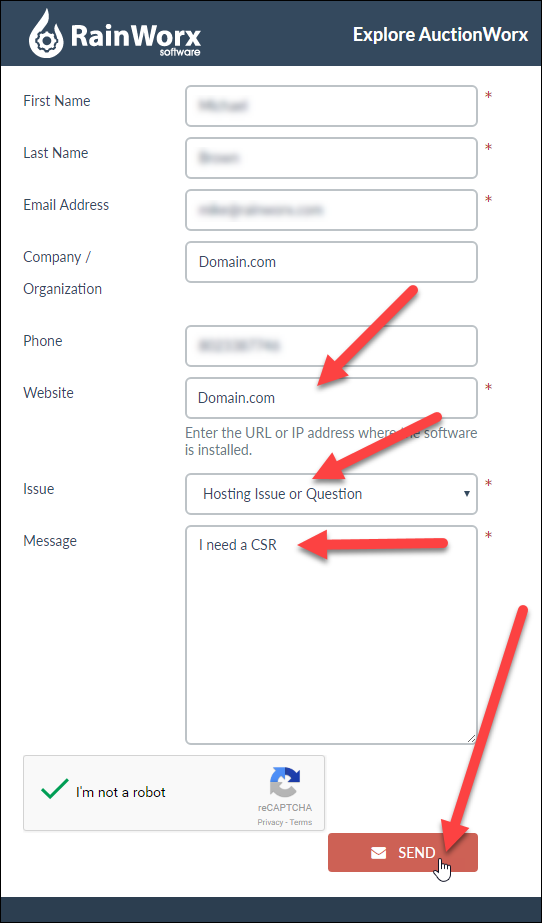
Ask RainWorx Support about setting up an SSL certificate and be sure to include the domain name that you want SSL turned on for. The best way to contact RainWorx support is to open a Support Ticket.
-
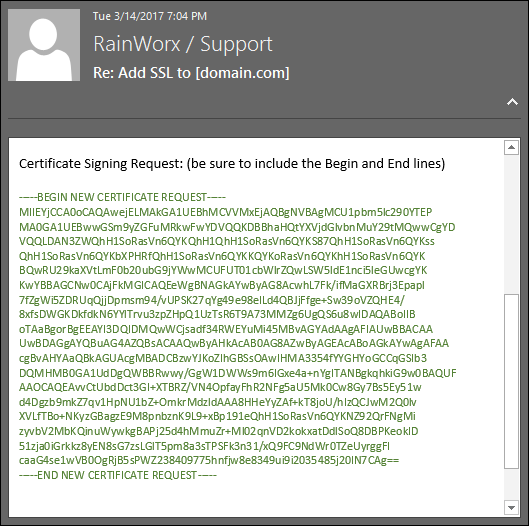
RainWorx Support will respond with an email that contains a block of text that you will need later in this process.
-
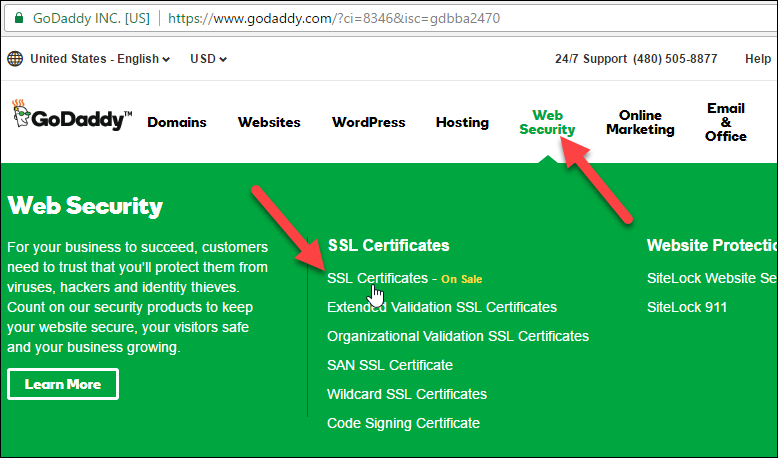
Go to GoDaddy.com, click the Web Security link at the top and click SSL Certificates.
-
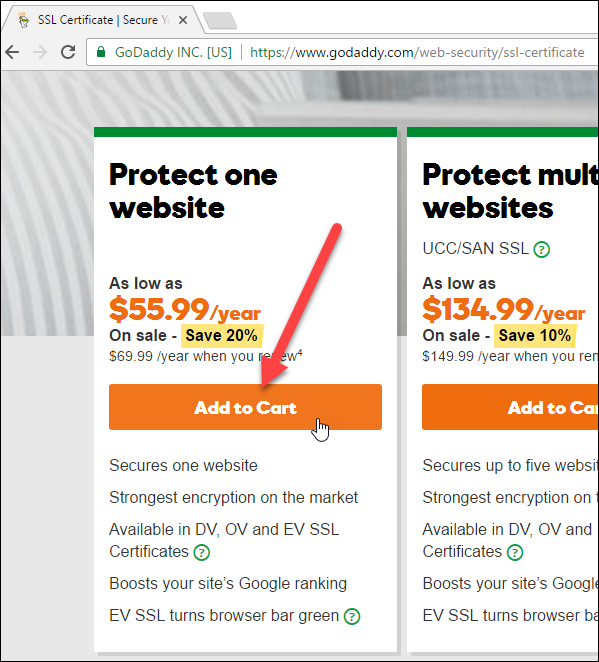
Scroll down to the 3 main SSL plans, select the Protect One Website plan and click the Add to Cart button.
-
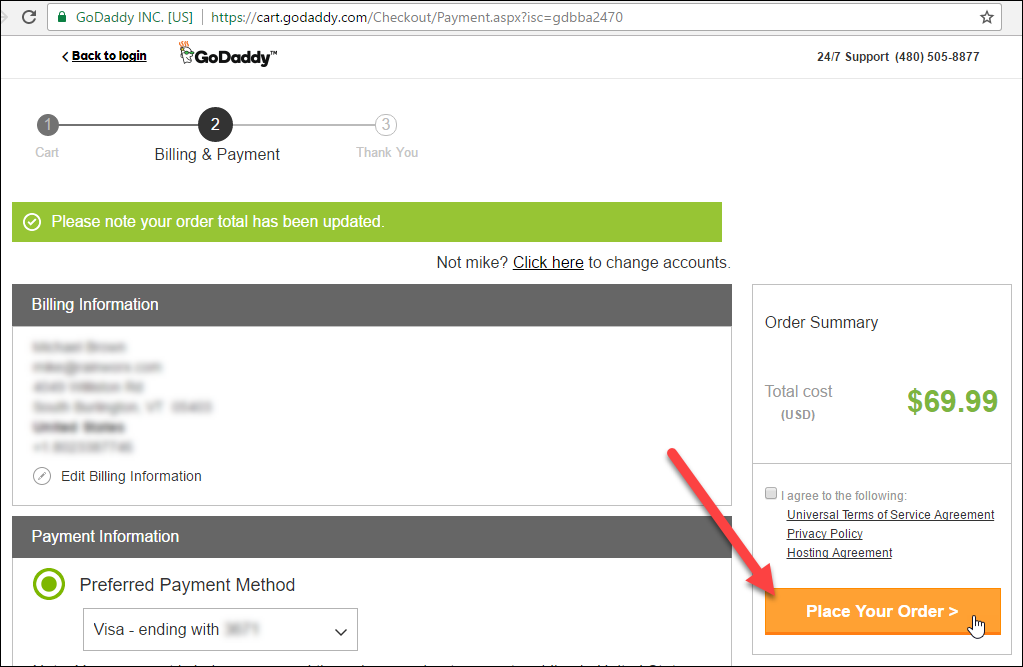
Continue with the ordering process until the purchase is complete.
-
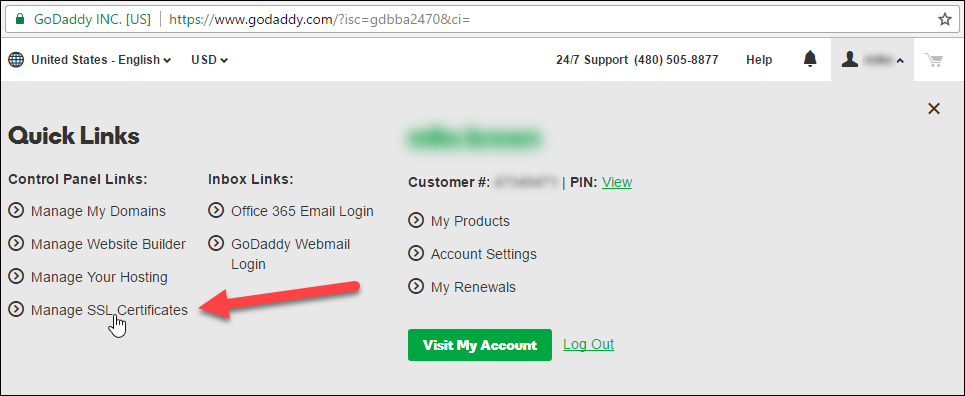
Now that the purchase has been completed, click on your name in the top right corner and click the Manage SSL Certificates quick link.
-
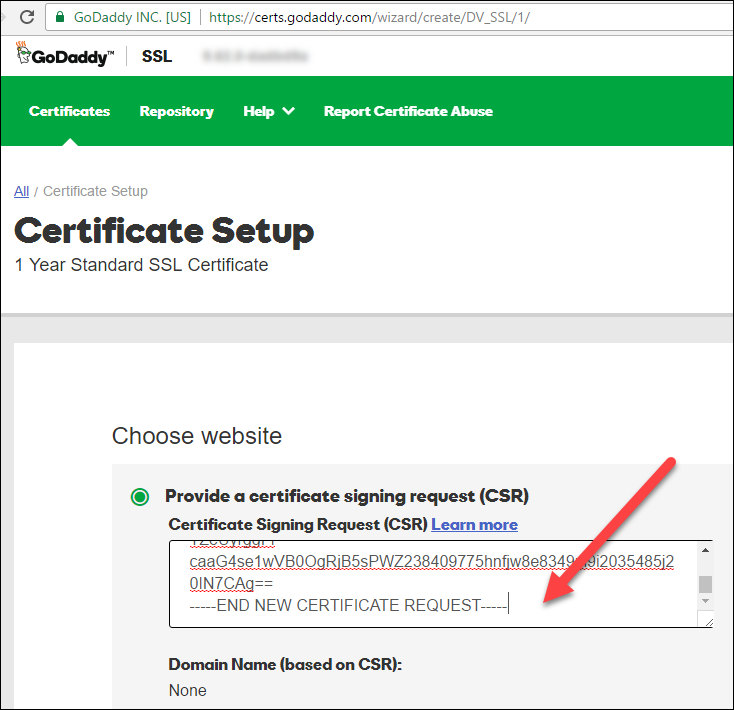
This is where the Green Text Block you received in step 2 comes in. Copy all the text in green including the Begin and End lines then paste it where it says "Paste your CSR here".
-
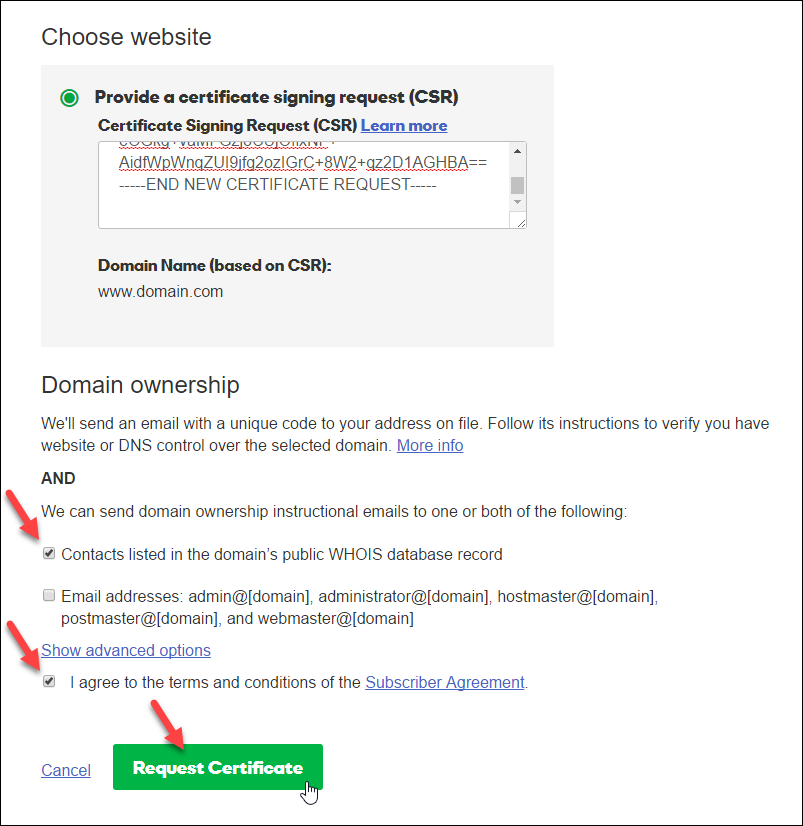
After entering the CSR into the textbox, fill out the rest of the form and click Request Certificate.
-
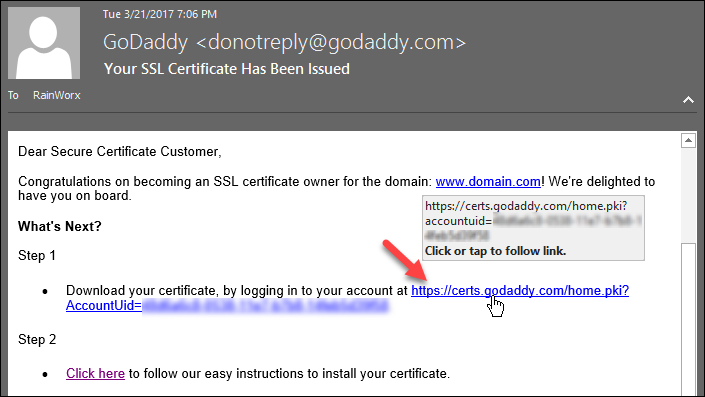
GoDaddy will send you an email with a link to download your certificate. Click the link provided in the email.
-
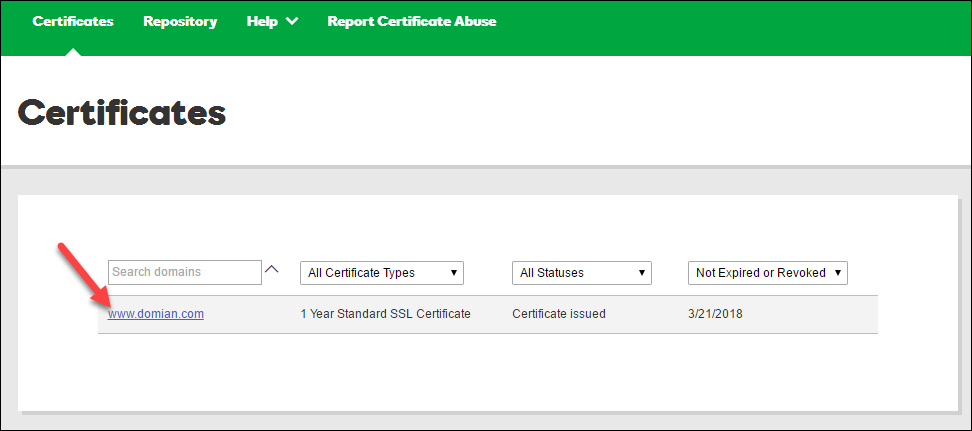
Click your domain.com link on the GoDaddy page to open the download page.
-
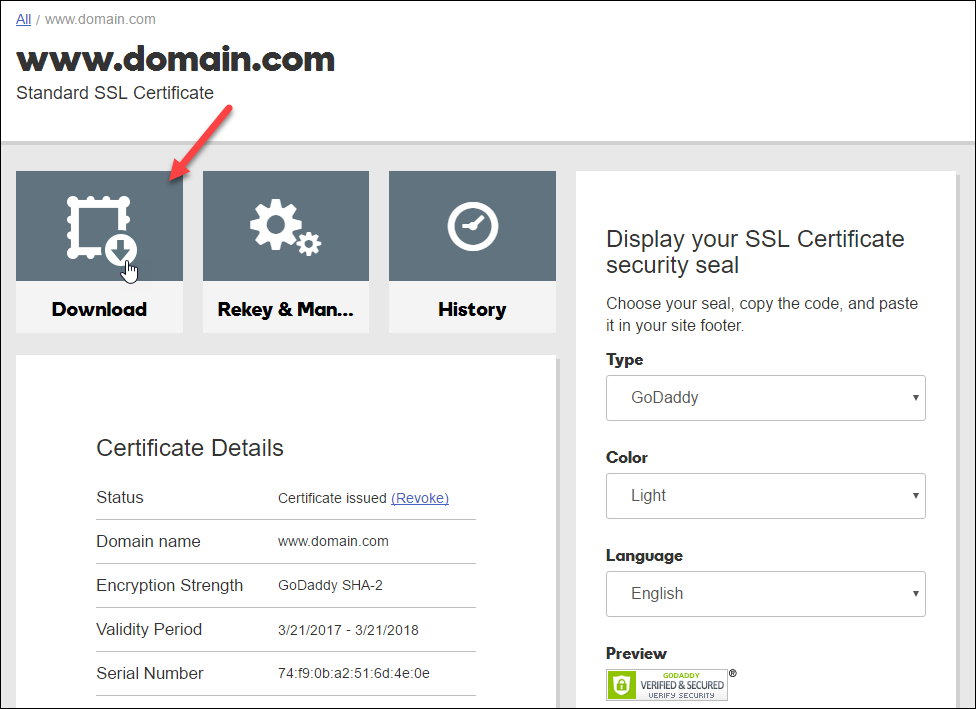
Click the download link to continue.
-
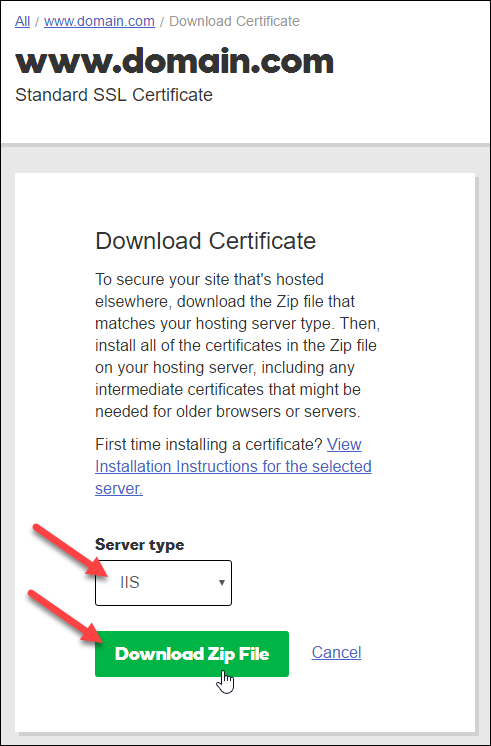
Select the Server Type as IIS and click the Download Zip File button.
Note
Some certificate issuers request the specific IIS version — and that varies by client server. The appropriate IIS version will be provided in the email sent to you in step 2.
-
The final step is to send the .zip file to RainWorx as a reply to the email you received in step 2.
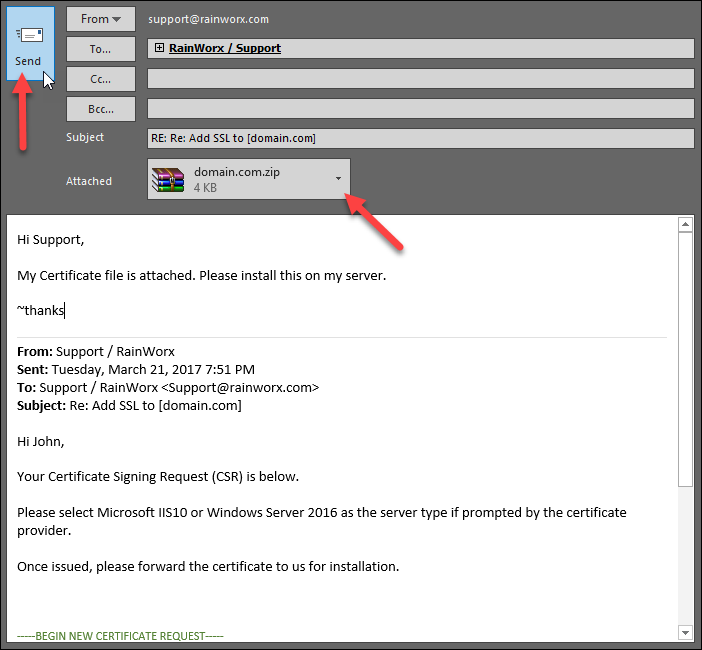
RainWorx Support will take it from here and will notify you when the setup is complete. You can expect the final setup to take 1 business day.