Properly Setting up System Email Addresses
The AuctionWorx system sends email notifications out to users. The email address that these messages come from should use the same domain name as the site itself otherwise, the emails sent from the system will likely be flagged as spam by the receiving email server.
Note
This tutorial only applies to clients that use RainWorx Hosting for their email service.
When you sign up for RainWorx Hosting you will be sent an email with the important login details. Find this email before moving on with the following instructions.
Note
If you cannot find this email your login information can be requested from RainWorx Support by opening a support ticket.
Sections in this tutorial
Using the Admin Portal of MailEnable
-
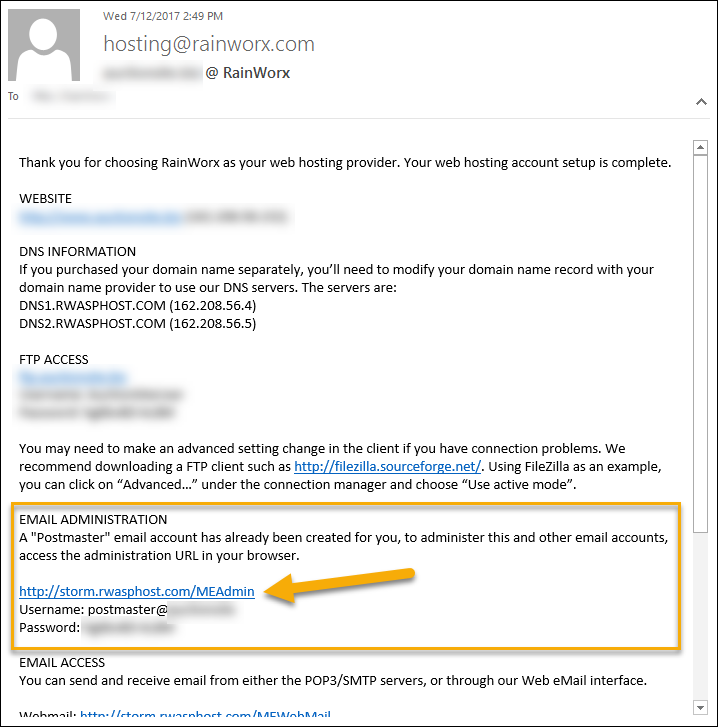
In the hosting email received from RainWorx you will see a section titled Email Administration. Click the link provided in this email and login using the username and password.
-
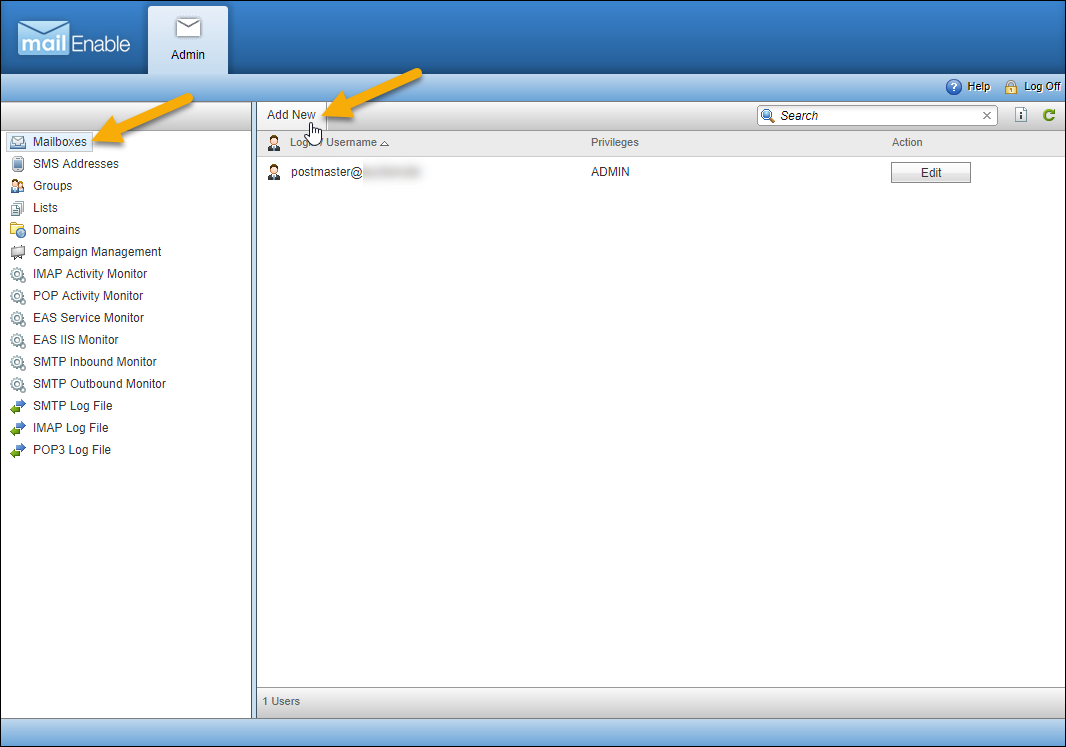
Once you are logged in, click the Mailboxes tab on the left then click the Add New button in the top left.
-
Fill in the fields on the Mailbox Creation Wizard and click the Add button.
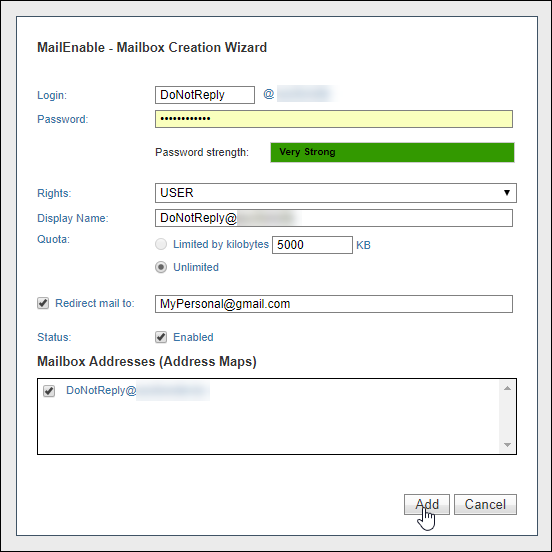
For the purpose of keeping this tutorial simple, having the emails redirected to your personal account is fine for now. The emails that are directed to the site admin will go to your personal account and no further setup is required. Another alternative is to use the MailEnable web interface to view messages from the system. The instructions to do this are also included in the Hosting email.
Note
RainWorx Support does not cover integrating email with your personal phone or with Outlook though, the instructions to do that can be readily found online.
Entering the System Email Address in the Admin Control Panel
The next part of this process is entering the new email address you created into AuctionWorx. There are three fields that this address can be used for. Two of them can be found in Site Preferences > Contact, the Administrator Email and the System Email Address. The last place is the admin user's email address field found on the User > Management > admin: Account Info page.
- Sign in as the admin and open the Admin Control Panel.
-
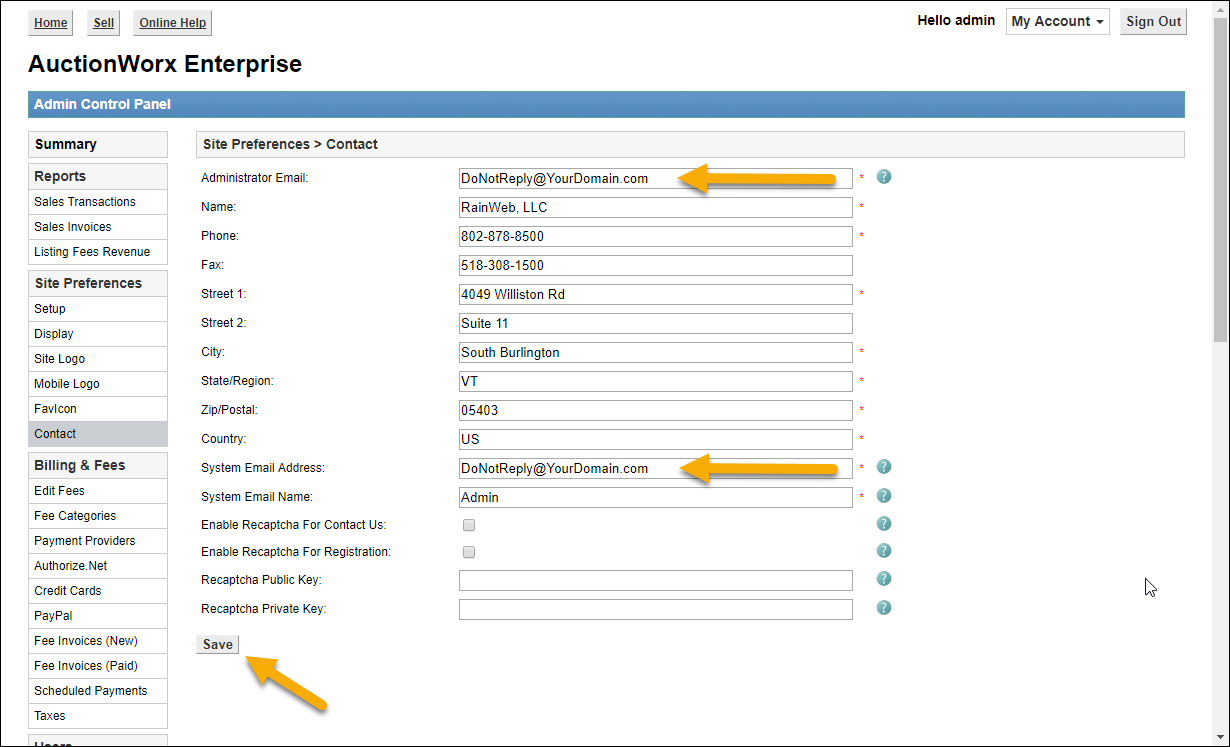
Navigate to the Site Preferences > Contact page and enter new address into the Administrator Email and the System Email Address fields. Click save.
Warning
Before doing this next step, confirm that you can receive emails at the email address you are changing it to. Failure to do this will result in not having a way to retrieve a lost password.
-
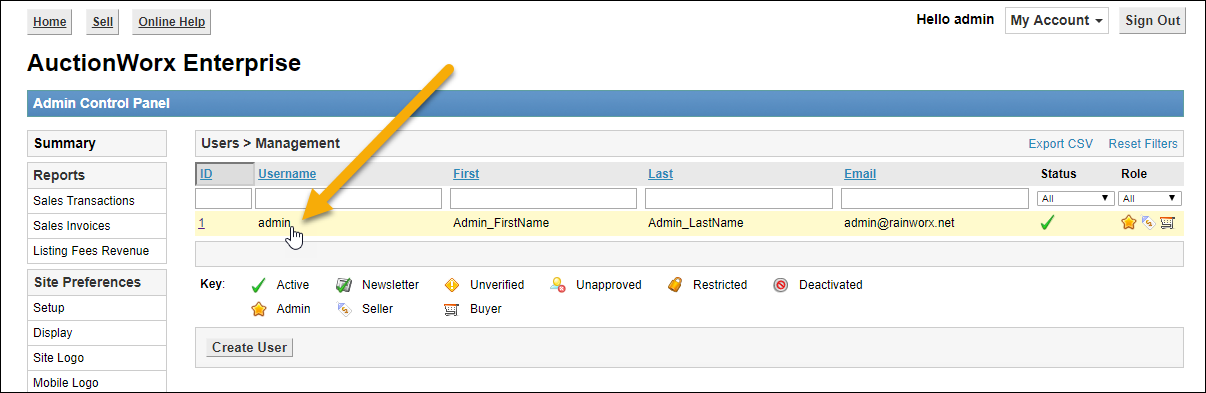
Navigate to the Users > Management page and click on the admin user row to open it.
-
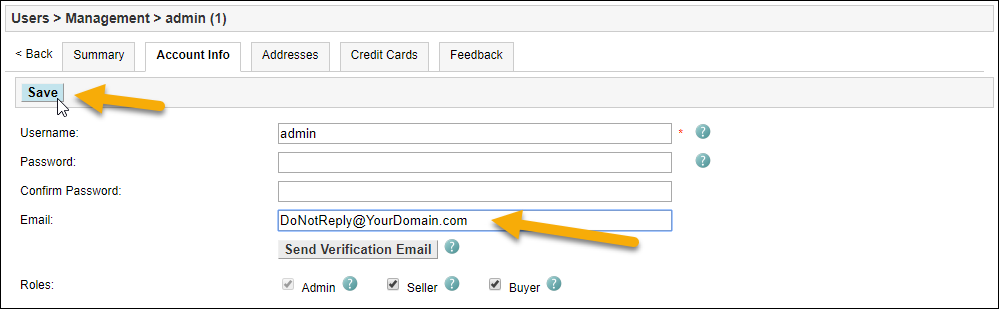
Click the Account Info tab, change the email address to the new email address and click the Save button at the top of the page.
At this point you should test that the system is sending out the emails with the correct email address in the From field.
If you are still having trouble with this process you should open a Support Ticket with RainWorx describing what steps you've taken and what sort of problems you are experiencing.