Configuring Stripe as a Single Seller
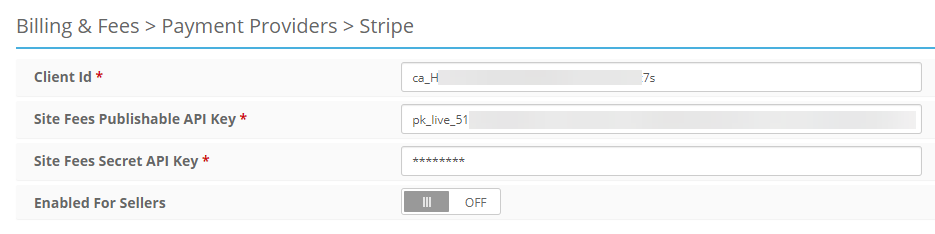
To use Stripe on Sales Invoices, you must first have the Stripe Credentials entered into the Admin Control Panel > Billing & Fees > Stripe page, then also added to the Seller account that will be Invoicing the buyers.
Note
With Enabled for Sellers turned off, the admin will still be able to apply the Site's Stripe Credentials to multiple seller users but, Seller Users will not be able to connect their own Stripe Credentials. If you'd like a Seller User to be able to enter their own Stripe Credentials, see Configuring Stripe for Third Party Sellers.
Next you'll need to bring the Stripe credentials entered into the Admin Control Panel > Billing & Fees > Stripe page over to the Seller user's payment settings.
There is a link that will do this for you.
-
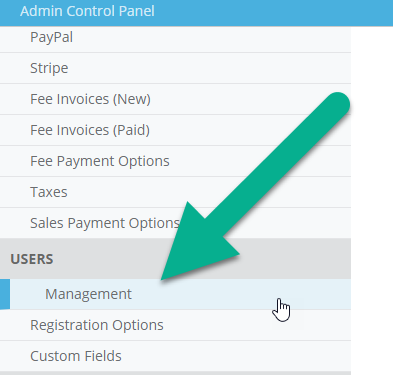
Navigate to the Admin Control Panel > Users Management page.
-
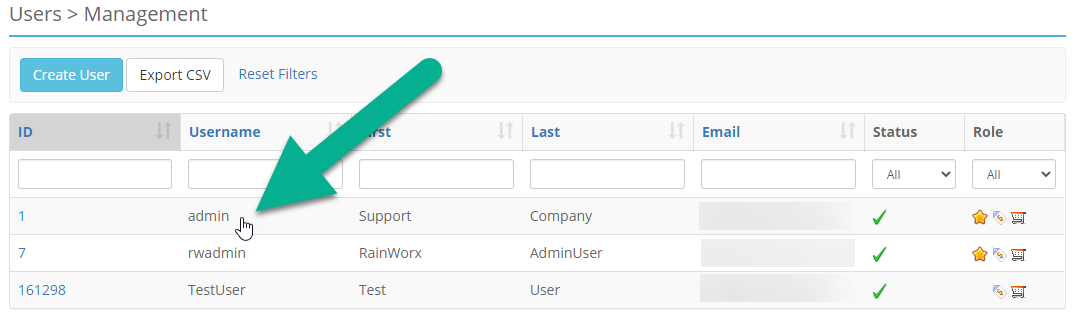
Click into the "admin" user. (or whichever user you intend to post the Listings as)
-
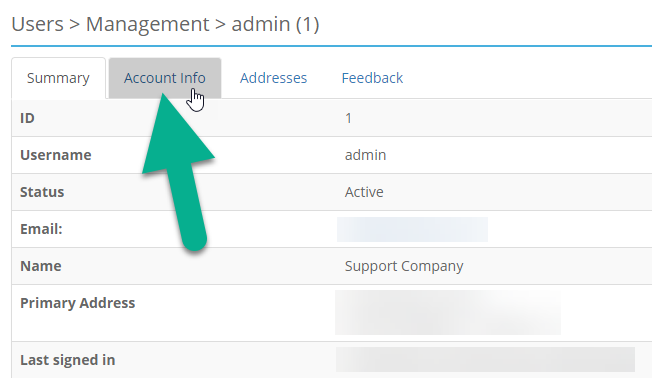
Open the Account Info tab at the top.
-
Scroll down and click the Use Site Stripe Credentials link.
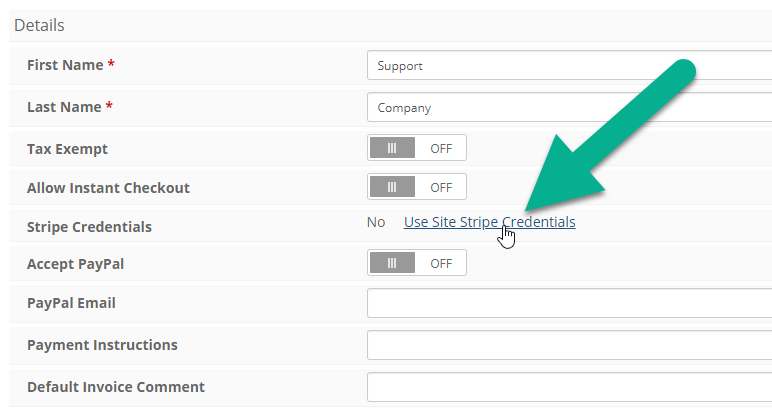
You should get a validation message saying that the Stripe Credentials have been copied.

Note
If you are using multiple seller user accounts under the same company, you would click this link for each seller user.
Optional Credit Card Settings
Here are some settings you may choose to turn on to affect the way the credit card information is collected and used.
-
Admin Control Panel > Users > Registration Options: Require Credit Card on Registration
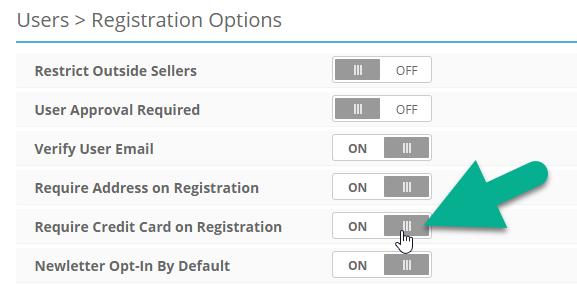
Turning this setting on will require that a user enters a credit card before being allowed to register for the site.
-
Admin Control Panel > Billing & Fees > Payment Providers: Require Credit Card for Buyers
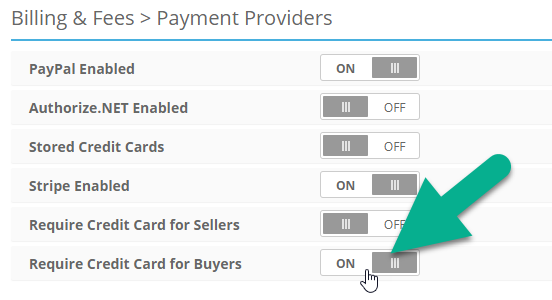
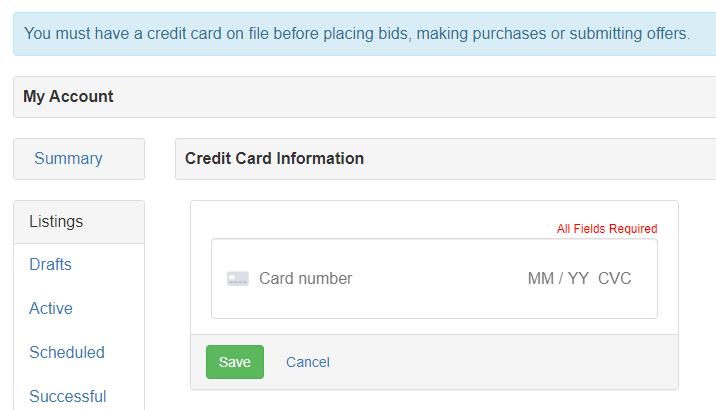
Turning on this setting will check that the Buyer has a card on file with the seller user who posted the Listing before allowing them to place a bid.
-
Admin Control Panel > Billing & Fees > Fee Payment Options: Daily Recurring Batch Payment Processing
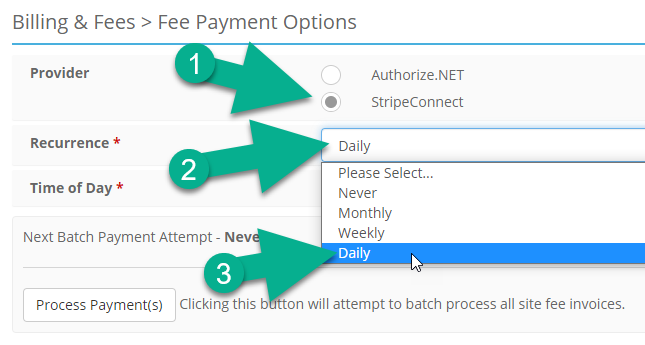
Turning on this setting will attempt to process any unpaid Site Fee invoices at a specified time of day.
-
Admin Control Panel > Billing & Fees > Sales Payment Options: Auto Charge Credit Cards
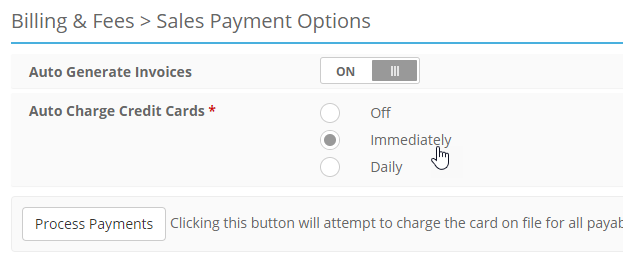
Selecting Immediately will attempt a charge an automatically generated invoice at the close of an Auction Listing or as soon as a Fixed Price listing has been purchased. Selecting Daily will attempt to process any unpaid Sales Invoices at a specific time of day. Using this setting requires that Auto Generate Invoices is turned on.