Display
Settings in this section control various aesthetic aspects of the website.
General
Heading Color - Select and set the color that will be applied to the site heading. Use the color picking utility or enter the 6 character HEX code. All HEX codes must be preceded by a HASH '#' symbol.
Site Header Style - This setting determines the formatting of the header of the site.
| Original |
 |
| Single Row Menu |
 |
Header/Menu Text Color - Choose the color of text for the header that will appropriately contrast the background color of the header.
- Dark Text for Light Backgrounds
- Light Text for Dark Backgrounds
Center Logo Position - Enable this setting to center the logo on the page. This setting only applies when the "Site Header Style" is set to "Original." Default logo position for PC and Tablets is left aligned. For all devices where the viewing area is less than 768px wide (i.e. mobile devices) the logo will be centered automatically.
Hide CMS Banners On Mobile - Top, side, and bottom banners (if configured) will be hidden on devices with a viewing area smaller than 768px wide.
Time Remaining Style - This setting determines the formatting of the remaining time when shown on the homepage, browse/search pages and listing detail pages.
- Classic, e.g. "10 Days, 19 Hours remaining"
- Active, e.g. "10 Days 19:33:10 remaining"
Show Scheduled Listings - If enabled, Listings that are scheduled to begin in the future will be displayed on the home page, browse pages and in search results.
Homepage
Homepage Content - This setting controls what content is displayed on the home page
- Default, featured listings
- Redirect to "Browse" page
- No listings
Show Homepage Decorations - If enabled, Listings displayed on the homepage will include any listing options selected by the seller.
Max Homepage Items - The maximum number of items that appear at one time on the homepage.
Browse / Search Results
Default Browse Sort - Select which sort option is selected by default when browsing listings
- Ending Soon
- Newest
Default Browse Style - This setting determines the default style to display results on the browse/search pages
- List, one listing per row with more text
- Grid, a gallery format with larger images
Max Results Per Page - The maximum number of individual listings that will appear on each page.
Show Zero Count Categories - If enabled, Category navigation will include all categories in the tier, even if they contain zero active listings. Otherwise (if disabled), only categories with at least one active listing existing under them will be displayed in the category navigation.
Show Category Counts - If enabled, A count of how many active listings exist under each category (including all subcategories) is displayed in parenthesis next to the category name on pages that contain the category navigation.
Gallery Aspect Ratio - The width to height ratio for gallery images. Aspect 4:3 is the default landscape orientation.
- 4:3 Landscape
- 1:1 Square
- 3:4 Portrait
Allow Gallery Image Cropping - If enabled, gallery images will be cropped to fit within the defined height and width determined by the "aspect ratio" setting. Otherwise, the gallery images will be resized to fit within the available space.
Short Gallery Titles - If enabled, listing titles will be restricted to a single line and ellipsized in Gallery view only.
Thumbnail Type - When Cropped is selected, the image will be made square to fit the image display area. When Scaled to Fit is selected, the image will be scaled down until the width fits the image display area.
| Type | Preview |
|---|---|
| Cropped | 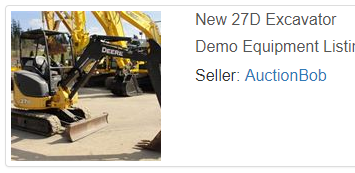 |
| Scaled to Fit | 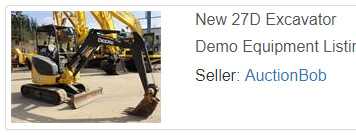 |
Note
Thumbnail Type only affects the thumbnails displayed in lists, not gallery images.
Display Listing Type in Search Results - When checked, the listing type will be displayed on the listing detail page and on the Listing Results page for both Browse and Search.
Show Seller Name in Search Results - When checked, the Seller's username is displayed below the listing title and subtitle when displayed in search result lists, etc.
Listing Detail Page
Show Seller Information On Detail Page - Show or Hide the seller information on the listing detail page. This includes the username, location, and feedback star rating.
Show Seller Location on Detail Page - When checked, the seller's City, State/Region and Country from their "Primary Address" will be displayed on the Listing Detail page.
Invoicing
Hide Seller Address On Sales Invoice - If enabled, the Seller's address will not be displayed on Sales Invoices.
Show Logo on Printable Invoice - The main site logo image will be displayed at the top of print invoices.
Note
Logos containing white text will not be visible. All printable invoices have a white background color.
Show Unpaid Invoice Count In Header - If enabled, when a buyer has 1 or more unpaid sales invoices it will be displayed in the header.
Show Buyer's Email Address - Include the buyer's email address on sales invoices. If the buyer's account status changes to unverified, unapproved, restricted, or deactivated - the email address will not be displayed.
Google Maps
Enable Google Maps - If enabled, the Google Maps API can be used to display a map on the listing/lot/event detail page.
Google Maps API Key - This value can be found under Keys & Credentials in your Google Cloud Console account.
Enable Google Maps (for Listings and Lots) - If enabled, the seller will be able to specify an address to render a map on the listing/lot detail page.