Content
The content on certain standard pages can be managed in this section.
Note
If the settings in Admin Control Panel > International > Preferences, both Enable Multiple Cultures and Show Regional Language Options are enabled, the page will display two drop-down menus for Adding and Removing the Regional Cultures from the list of what can be edited. If two or more languages are enabled, the basic languages (without regional discretion) will automatically be displayed.
To edit content, click the Edit button next to the content area title. For more information on editing content see the CKEditor page.
Using CSS on the Content Pages
Due to the responsive design, we recommend using variable width custom content. Standard Bootstrap 3 CSS can be used to manage your custom content. To show, or hide, content use the responsive classes. To hide content on x-small devices use the "hidden-xs" CSS class.
For responsive images be sure to add the "img-responsive" class to your image assets. (This will automatically resize images for smaller devices)
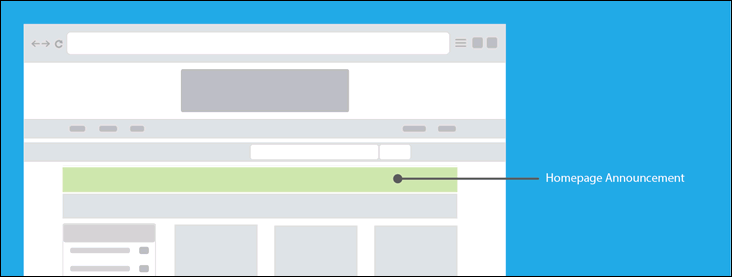
Homepage Announcement - This content will appear on the homepage only.
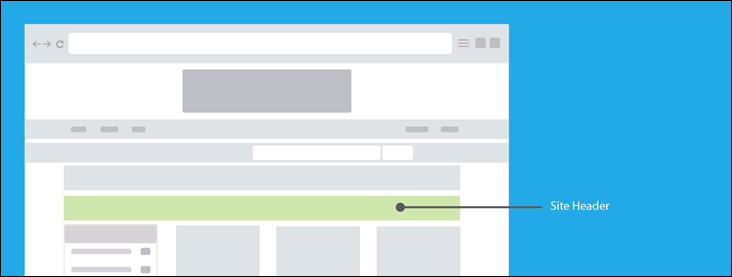
Site Header - This content will appear on every page.
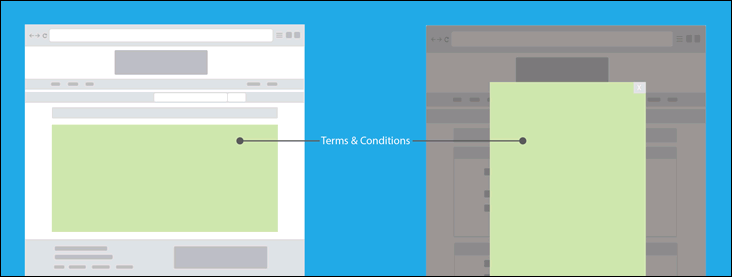
Terms & Conditions - The content will appear in a dedicated page for the Terms & Conditions and as a modal dialog window activated by clicking a link on the registration form.
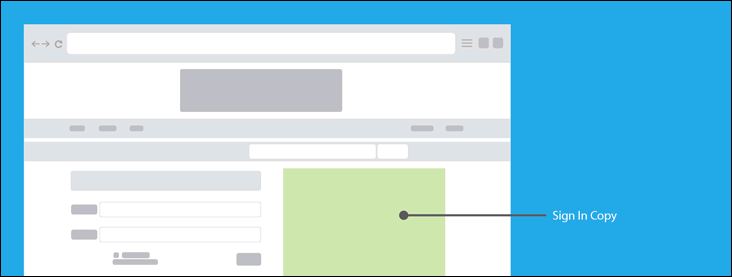
Sign-In Copy - This content will be displayed on the standard sign-in page. It will not appear alongside the sign-in form that appears on the bid confirmation page when a user is not logged in.
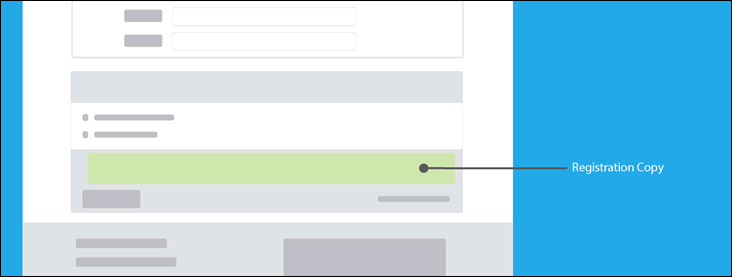
Registration Copy - This content will appear at the bottom of the registration form.
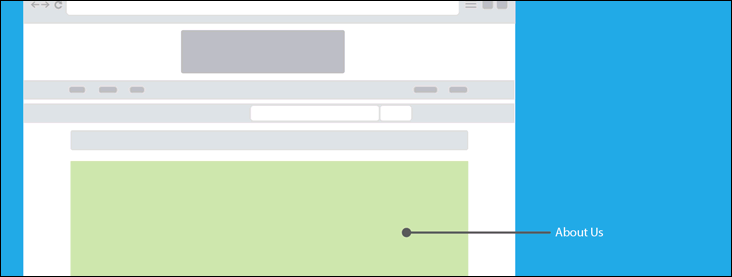
About Us - This content will appear on a dedicated page and is accessible by clicking the About Us link at the bottom of every page.
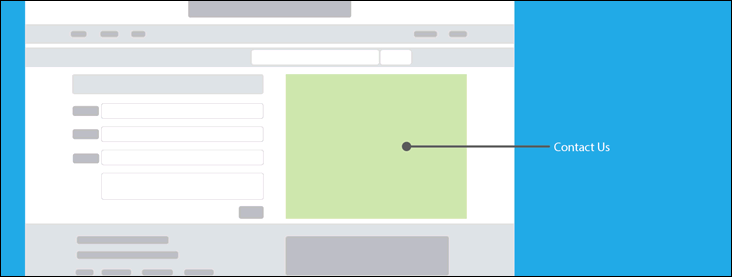
Contact Us - This content will appear alongside the contact form and is accessible by clicking the Contact Us link at the bottom of every page.
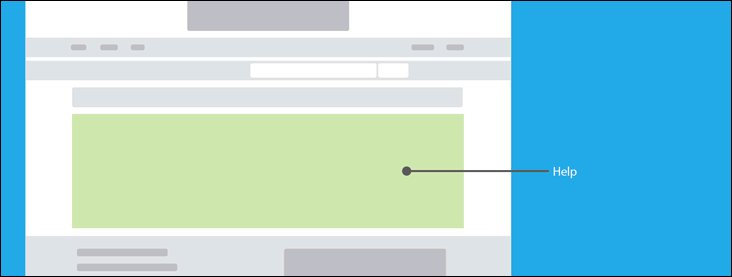
Help - This content will appear on a dedicated page and is accessible by clicking the Help link at the bottom of every page.
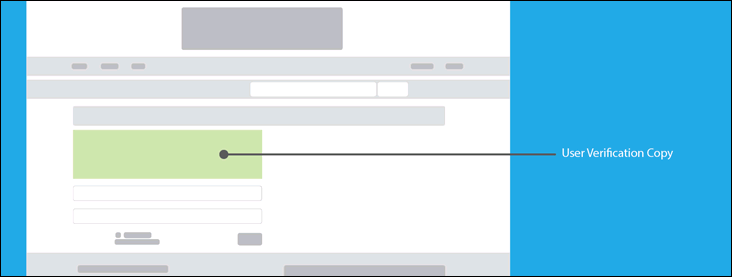
User Verification Copy - This content will appear above the user verification form. This form is accessed when a user clicks on the account verification link that they receive in their email (when email verification settings are enabled in the Admin Control Panel).
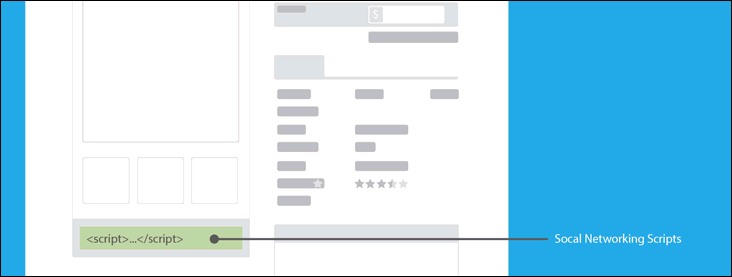
Social Networking Scripts - This is an area for entering script from social media outlets for sharing listing detail pages.
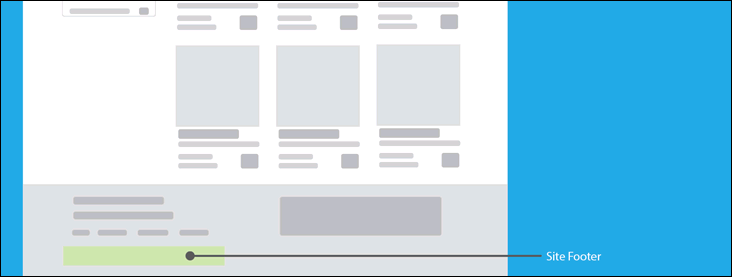
Site Footer - This content will appear below the secondary navigation links in the footer area at the bottom of every page.
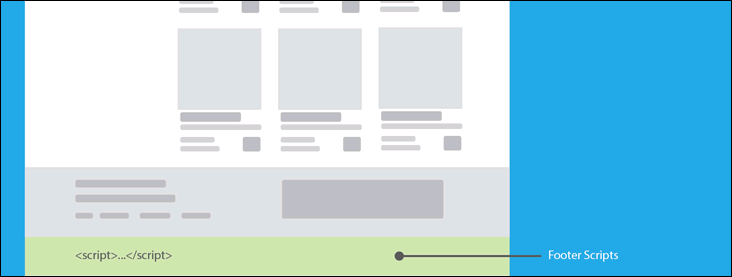
Footer Scripts - This is an area for code that is required to be inserted before the closing <body> tag.
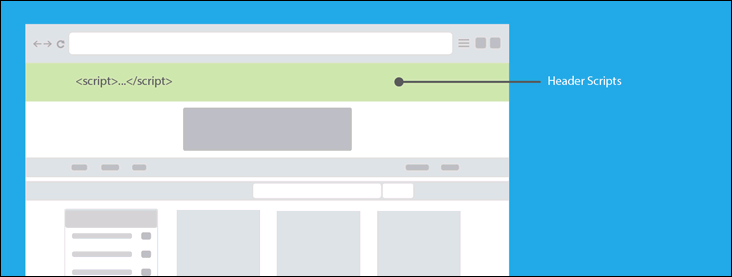
Header Scripts - This is an area for code that is required to be inserted within the <head> tags.
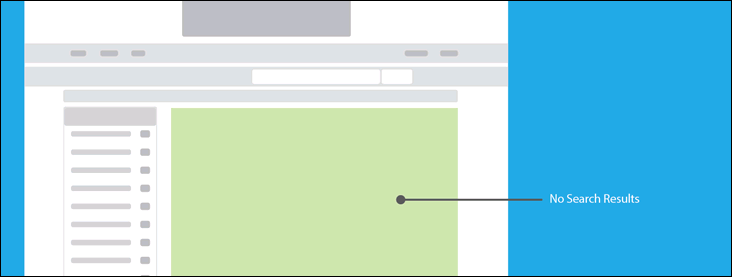
No Search Results - This content message will be displayed when a standard or advanced listing search returns zero results.
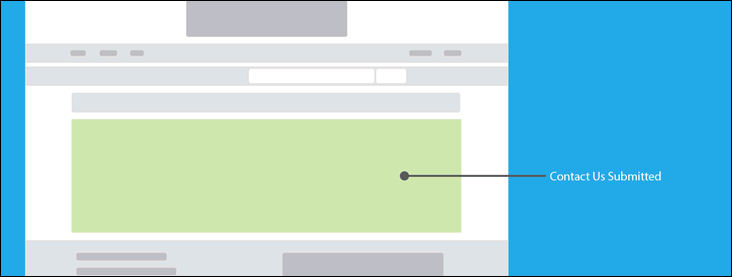
Contact Us Submitted - This content message will be displayed after the Contact Us form is submitted.
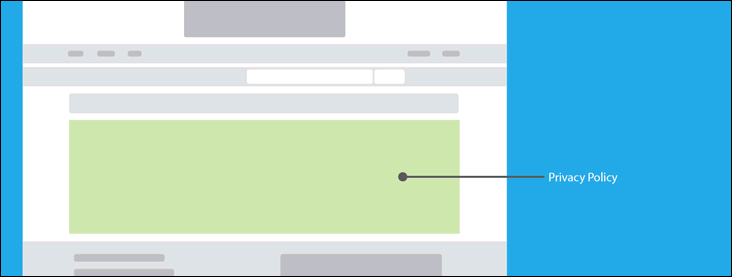
Privacy Policy - This content will appear on a dedicated page and is accessible by clicking the Privacy Policy link at the bottom of every page.
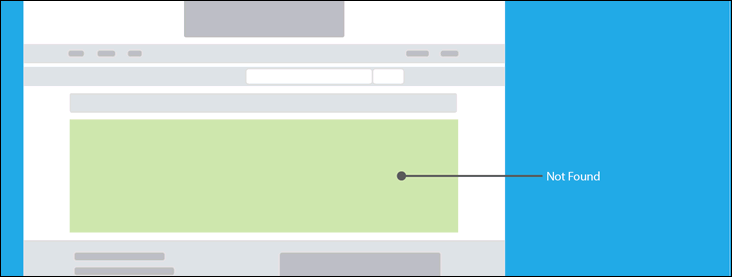
Not Found - This content will appear when a requested page is not found on the server (404 Error Page).
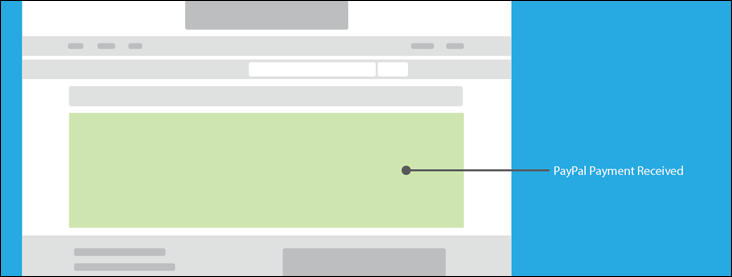
PayPal Payment Received - This content will appear after a successful PayPal payment is made and the user is returned back to the website.
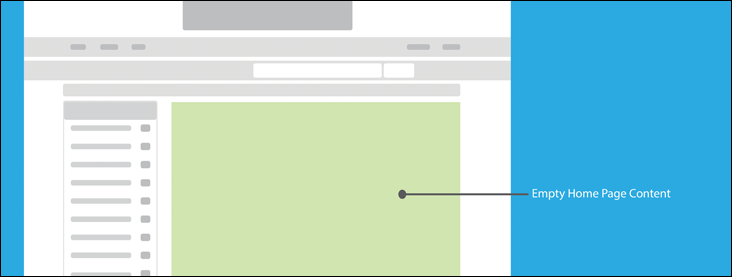
Empty Home Page Content - This content will appear if there are no featured items being displayed on the home page.
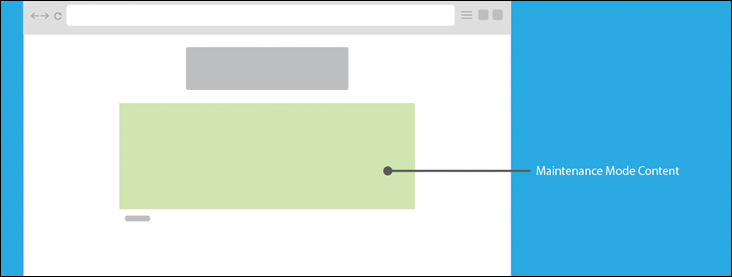
Under Construction Mode Content - This will appear as the home screen when the Under Construction Mode setting is checked. (See: Site Preferences > Setup)
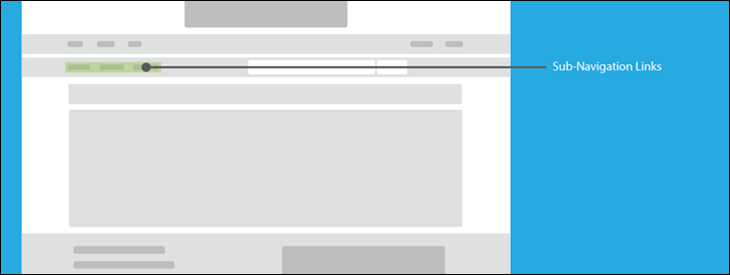
Sub-Navigation Links - This feature allows you to add links to your custom CMS pages.
Item Not Viewable - This content is displayed on a Listing Detail page if the Listing is hidden or not viewable.
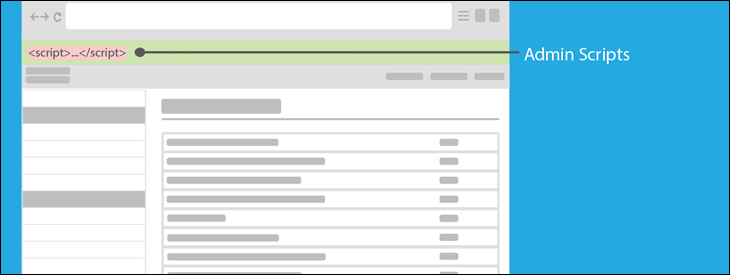
Admin Scripts - This allows you to apply custom CSS or JS to the Admin Control Panel.
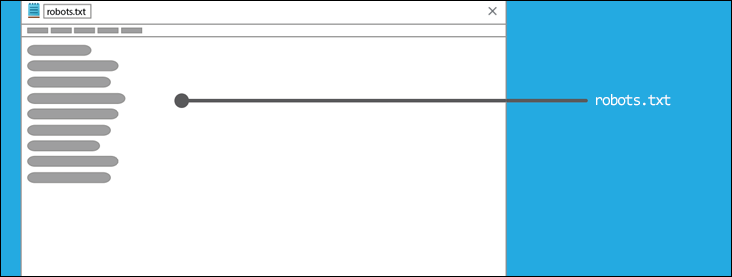
robots.txt - This CMS area affects the robots.txt file found in the web root folder.
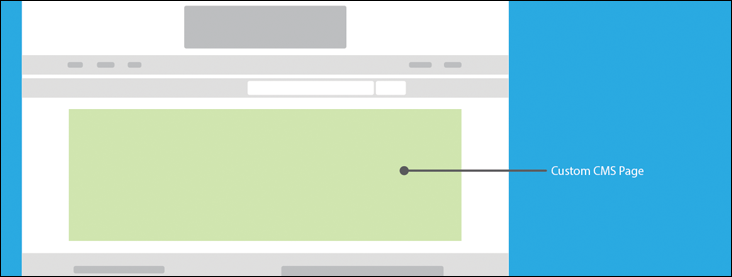
Custom CMS Page - This feature allows you to create any number of custom content pages with unique URLs.
Note
More information is available about Custom Content Pages
Use HTML Editor - When checked, This option will allow for use of the Rich Text tools (like bold, italic, etc...) to make changes to your custom CMS page. Creating a new page without the HTML Editor will result in a plain text input that will directly accept HTML code.